Use Clapilot without guessing routes
This guide explains the main workflows the way users see them in the app: where to click, what to check, and how to know the step is finished.
The most important flows as images
These images explain the workflows visually. The cards below remain the exact step-by-step guide.

Shows the path into Profile, the name, email, avatar, and password fields, and where saving happens.

Shows Google, Microsoft, iCloud, or IMAP connection and the follow-up inbox check.

Shows the daily path from upload and preview to a chat question and a resulting task or email draft.
Ready in 30 minutes
Each card shows the direct link and the normal click path in the app. Use the link when you are already signed in.
Your name, email, avatar, and password appear in team chat, email signatures, and agent replies.
Your name and picture appear correctly in Team Chat and the profile area.
- 1Sign in and open Profile.
- 2Check display name, login email, and profile picture.
- 3If needed, choose a profile picture, move and zoom it in the crop dialog, and apply the crop.
- 4Set or change the password if the account was newly created.
- 5Save changes and reload the page once.
Clapilot can only read personal mail, prepare reply drafts, and send as you after this is connected.
You can see real messages in Emails and open or send a draft.
- 1Choose Google Workspace, Microsoft 365, Apple iCloud, or IMAP/SMTP.
- 2Follow the OAuth dialog or enter server, address, and app password.
- 3Save the connection.
- 4Open Emails and confirm the inbox loads without warnings.
Documents power search, client context, email attachments, and Word/Excel work.
The file is in the right place and opens from the preview.
- 1Open Documents.
- 2Drag a file into the list or use Upload.
- 3Choose a folder or client if the file belongs to a customer.
- 4Open the preview and check summary, extracted text, and download.
Tasks show what needs attention today and are the simplest handoff point for people or agents.
The task has the right status and can be found by search or client context.
- 1Open Tasks and choose a board.
- 2Create a task with title, due date, and priority.
- 3Drag the task to another column or change its status.
- 4Open the detail view and check client, source, and comments.
The agent can navigate, find documents, prepare drafts, create tasks, and operate modules.
The agent names the changed objects or opens the matching page directly.
- 1Write the goal and the context, not only the question.
- 2Mention clients, documents, or tasks when you know them.
- 3Review proposed changes before sending, deleting, or publishing.
- 4Ask for a short summary of the actions that were performed.
Daily work
Reply to an email
Move from new email to reviewed reply draft.
- 1Open Emails. When the inbox is busy, switch to the Smart view with filters like “Important” or “Reply needed”.
- 2Open a message that needs a reply.
- 3Review client context, detected tasks/deadlines, and the prepared draft.
- 4Use Reply in the detail toolbar to edit the suggestion or write a manual reply.
- 5Send, edit, or convert findings into a task or calendar event.
Find a document
Find a document by search, folder, or client.
- 1Enter a search term, client, or document type.
- 2Sort the list or grid.
- 3Open preview and check the AI summary.
- 4For Office files, continue directly in Word Editor or Excel Editor.
Prepare an appointment
Create a calendar entry from natural language.
- 1Open Calendar and start a new event.
- 2Describe who, when, why, and desired duration.
- 3Review the suggestion and save.
- 4When it came from email, use the action in the email detail view.
All areas at a glance
A short overview of every area in the sidebar. Each area includes an example sentence you can send to the agent as is, or adapt.
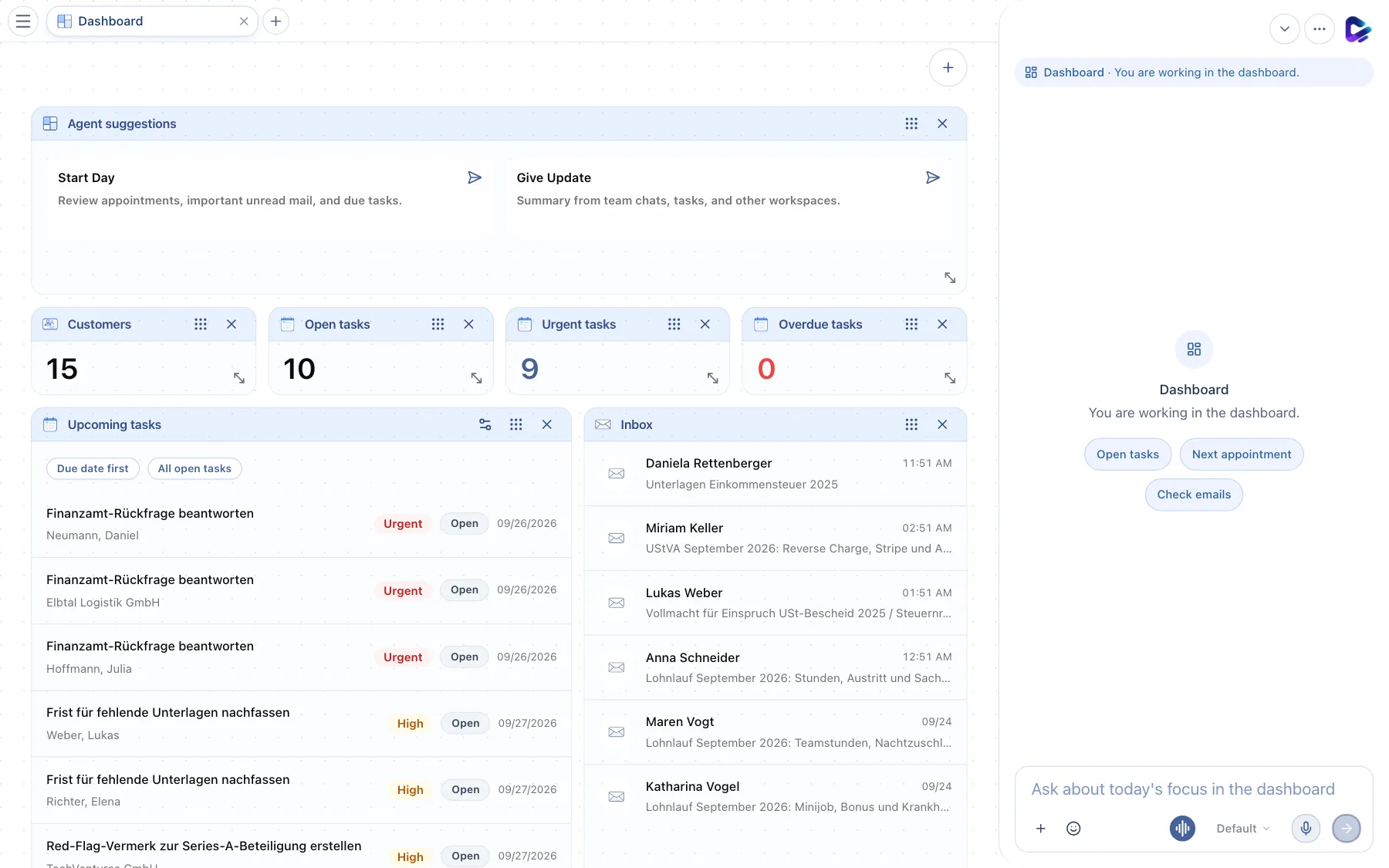
Dashboard
/Your start page: today's appointments, new emails, open tasks, and highlights at a glance.
“Summarize what matters for me today.”
Emails
/emailsInbox with Smart view, reply drafts, and links to clients and tasks.
“Reply to Ms. Berger's email in a friendly tone and suggest two meeting times.”
Tasks
/aufgabenBoards with columns and a detail view showing client, comments, and history.
“Create a task ‘Request documents’ due Friday.”
Calendar
/calendarCreate and move appointments, or pick them up directly from emails.
“Block tomorrow from 2 to 3 pm for reviewing the receipts.”
Clients
/mandantenThe client file: contact details, documents, tasks, and notes per client.
“Show me all open tasks for the Schmidt bakery.”
Documents
/dokumenteStorage with folders, preview, AI summary, and Word/Excel editing.
“Find the 2024 rental contract and summarize it in three sentences.”
Notes
/modules/notizenQuick notes you can find again later and continue working on with the agent.
“Create a note with the key points from this chat.”
Team Chat
/team-chatChannels for your team. Mention the agent with @ so it joins in.
“@Agent, briefly summarize the discussion in this channel.”
Automations
/geplante-aufgabenSchedule recurring agent tasks, for example reminders or regular reports.
“Remind me every Monday at 8 am about weekly planning.”
Social Media
/modules/social-mediaDraft, schedule, and publish posts for LinkedIn and other channels.
“Draft a LinkedIn post about our new advisory service.”
Call & Fax Agent
/modules/call-agentThe agent makes calls or sends faxes for you and logs the outcome.
“Call the office and confirm Thursday's appointment.”
Postal Mail
/physische-postSend documents as a real letter by post and track the delivery status.
“Send this letter by post to Mr. Maier in Munich.”
Modules & Skills
/modulesThe store for extra modules like Wiki, News, or Video Studio. Installed modules appear in the sidebar.
“Which modules are installed, and what can Video Studio do?”
Settings
/profilProfile, password, mailbox connection, and other personal settings.
“Open my mailbox settings.”
Working with the agent
Agents are work helpers, not a search box.
Give the agent a goal, context, and desired output format. The clearer the task, the better it can open pages, use tools, and summarize changes.
How to tell everything works
- Profile shows the correct name and picture.
- Emails load without a connection warning.
- An uploaded document can be searched and opened.
- A task can be created, found, and moved.
- The agent can open a page or summarize a concrete change it made.