

Settings
Profile, language, chat options, menu, email signature and filters, heartbeat, password, app connections and module settings – everything you can set up for yourself.
Open in ClapilotYou reach the settings via Settings at the bottom of the menu. This chapter covers everything each person sets up for themselves. Managing the instance – users, agent, mailboxes and features – is covered in the Administration chapter.
Layout
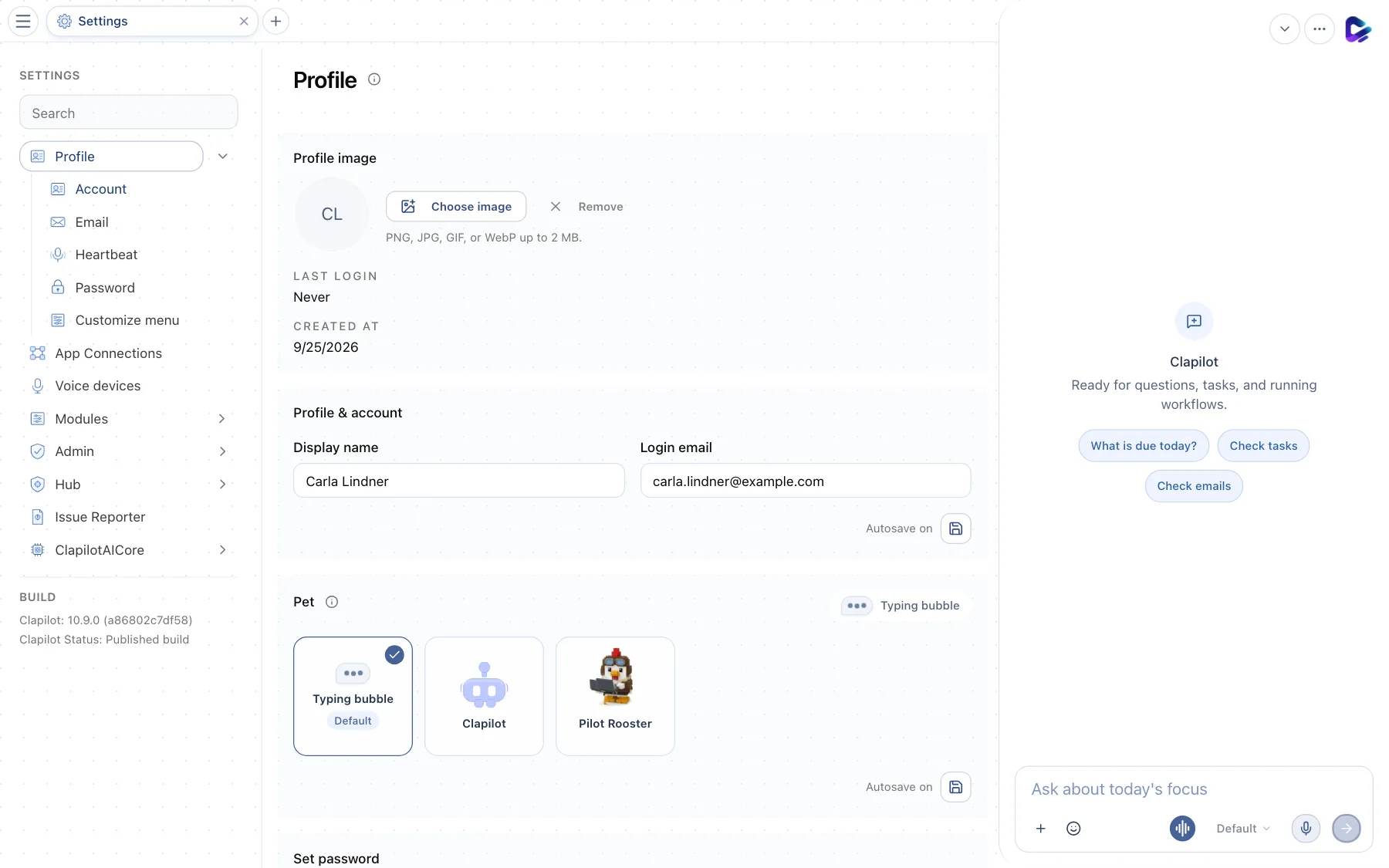
- Search – finds a setting by its name. Esc clears the field.
- Account – profile image, name, login email, language, chat options and data export.
- Email – change your login email, signature and filters for unimportant emails.
- Heartbeat – lets the agent check in with you regularly on its own.
- Password – change your password.
- Customize menu – order and visibility of the menu entries.
- App Connections – mailboxes, calendars, cloud storage and other services (see Getting started).
- Admin – for administrators only (see Administration).
You also find Voice devices here for pairing a Clapilot speaker, Modules with the settings of installed modules, and the Issue Reporter. At the bottom left, Build shows which Clapilot version is running.
Account: profile, language and chat
Profile image, display name and login email are described in the Getting started chapter. Further down the page are your personal options:
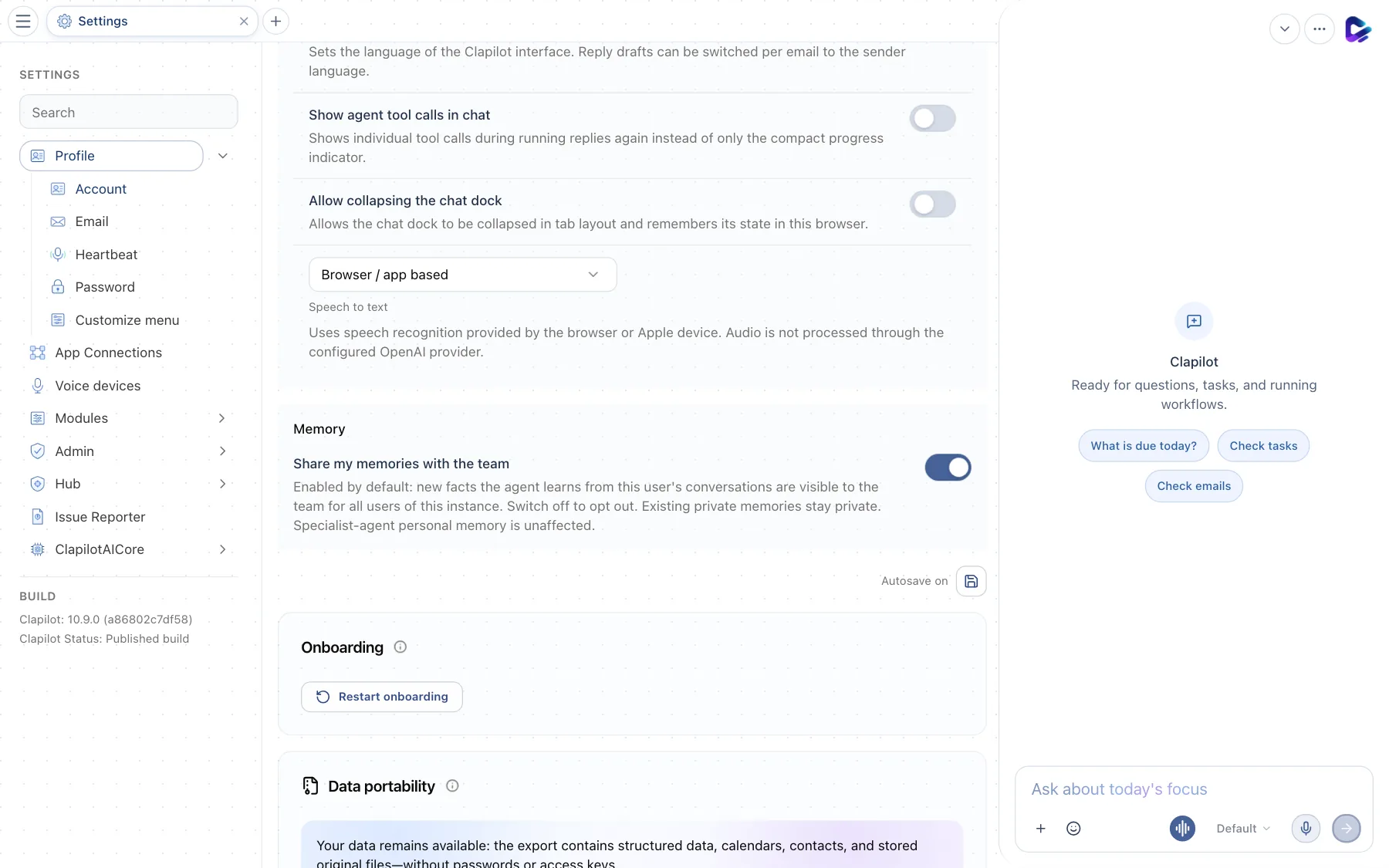
- Language – German, English or Italian for the whole interface. Independently of this, you can have email reply drafts written in the sender's language, per email.
- Show agent tool calls in chat – while the agent replies, shows each of its individual steps instead of a compact progress indicator.
- Allow collapsing the chat dock – lets you collapse the chat dock on the right; Clapilot remembers its state.
More options on this page:
- Pet – the animation that appears in the chat while the agent is working: a typing bubble, the Clapilot character or the Pilot Rooster.
- Speech to text – whether dictation is recognized in the browser or on your Apple device, or by your instance's AI provider.
- Memory – Share my memories with the team decides whether facts the agent learns from your conversations are available to the whole team.
- Restart onboarding – shows the introduction from your first sign-in again.
- Data portability – Export my data creates a ZIP file with your data, calendars, contacts and documents in their original format. Admins can also Export workspace for the whole workspace.
Customize the menu
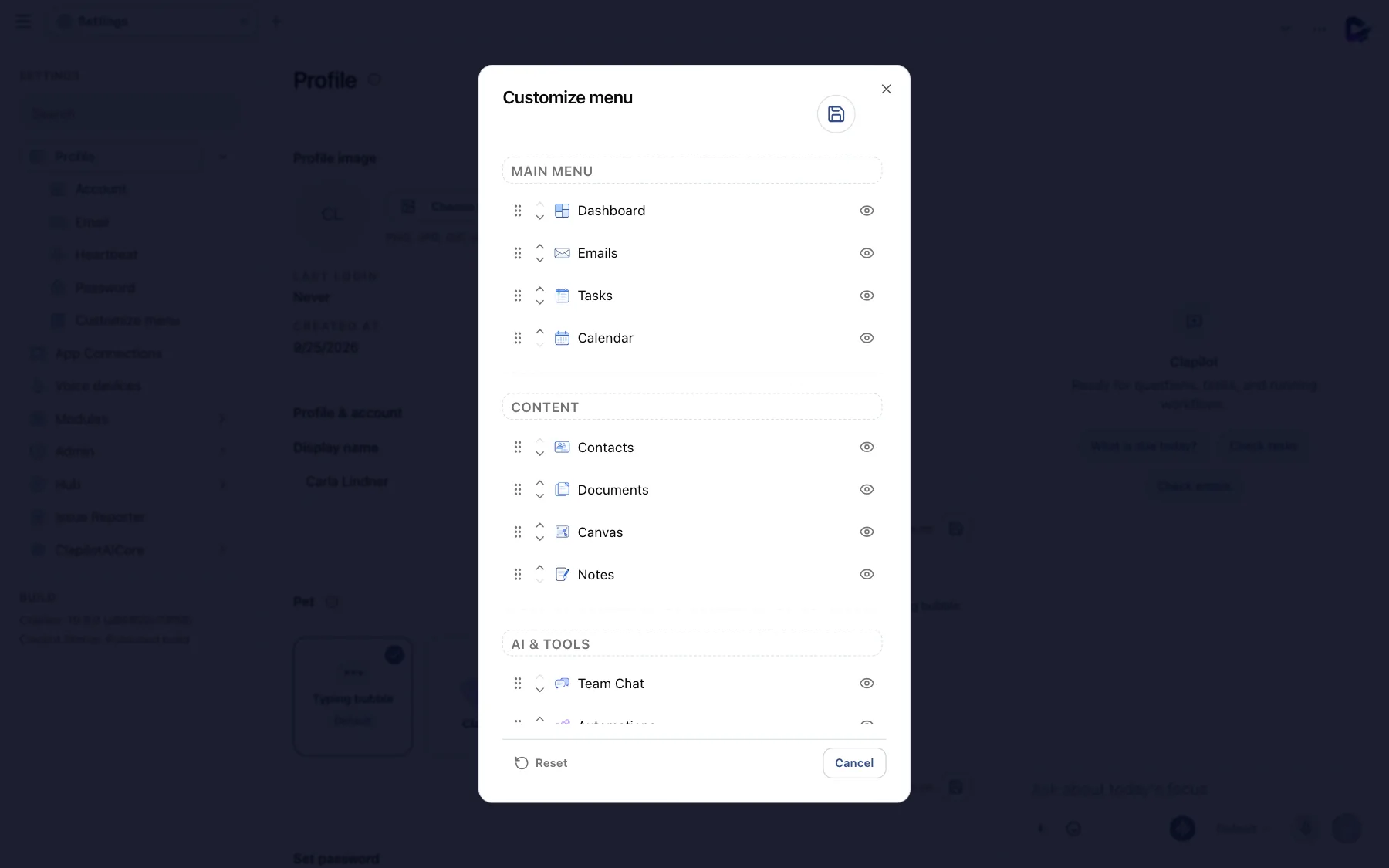
- Section – the groups of the menu. Click a section's name to rename it.
- Reset – restores the original order.
Drag entries by their handle (six dots) or use the arrows to move them within their section. The eye icon hides or shows an entry. Save with the floppy disk icon at the top right. This setting only applies to you.
Email: signature and filters

- Change email – the address you sign in with.
- Outgoing signature – the signature below your emails, as Text or HTML with a logo and links. Clapilot can suggest one based on the emails you have sent.
- Irrelevant email filters – senders or keywords that Clapilot should not analyze, such as newsletters or notifications. Remove entries with the ×.
You manage the mailboxes themselves under App Connections.
Heartbeat
With the heartbeat, the agent checks in with you regularly on its own – for example with a reminder about an overdue deadline or an email that still has no reply. If there is nothing to report, it stays quiet.
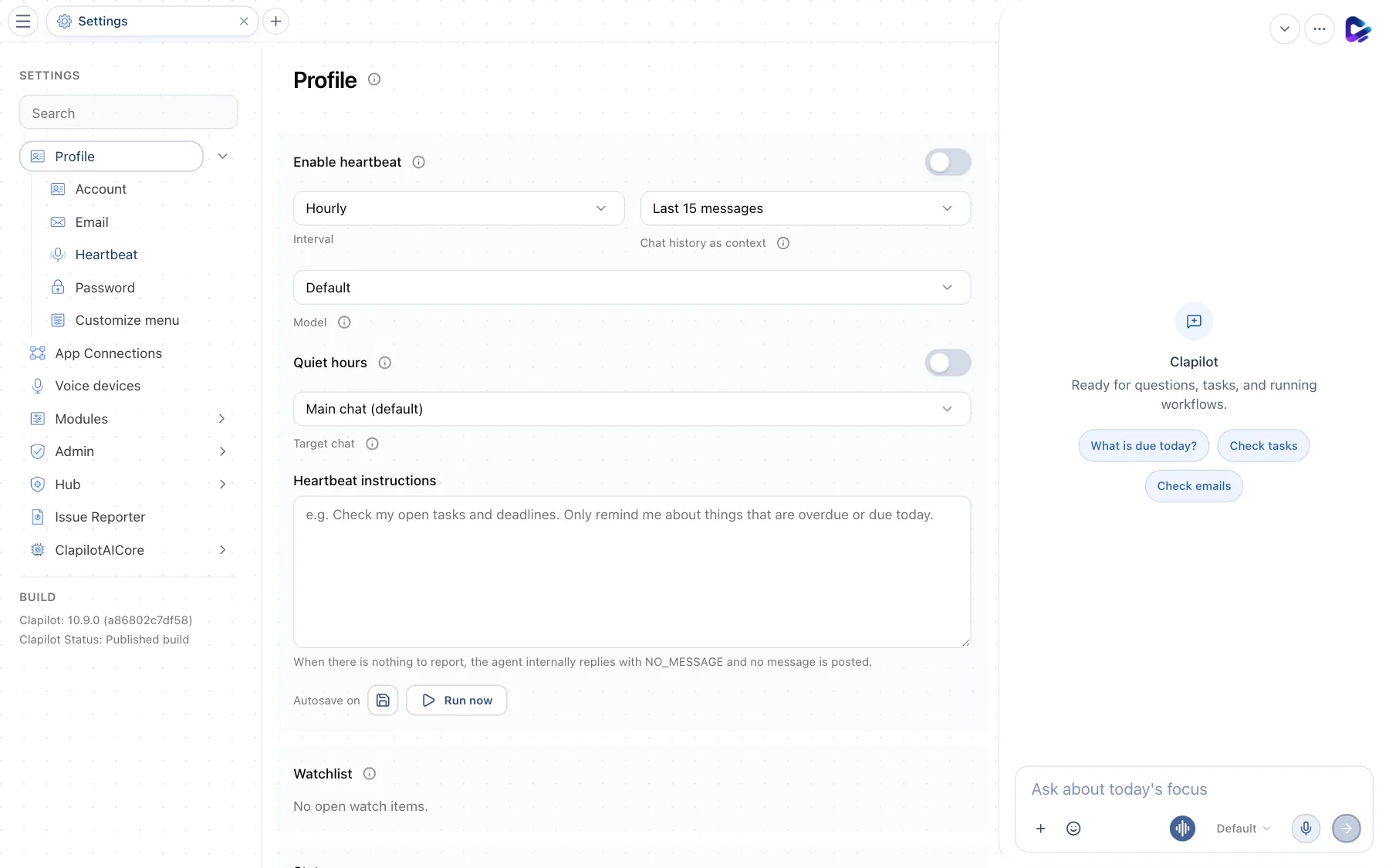
- Enable heartbeat – turns the heartbeat on. Below it, you set the Interval, how many chat messages serve as context and which Model does the work.
- Quiet hours – times when the agent doesn't check in. Below that, you choose the Target chat where its messages appear.
- Heartbeat instructions – what the agent should check, for example: “Check my open tasks and deadlines. Only remind me of things that are overdue or due today.”
- Run now – starts a run right away for testing.
Under Watchlist you see what the agent is currently keeping an eye on, and below that the status of the last and next run.
Password
Under Password, enter your current password and then your new one twice. If you have forgotten your password, an administrator can send you a reset link.
Module settings and devices
- Modules → Contacts – import contacts from a VCF file.
- Modules → Calendar – subscribe to iCal calendars with a name, URL and refresh interval; Sync now fetches new events right away.
- Modules → Style guide – colors, fonts, table style and logo for documents, presentations and generated images. You can have several named styles; one of them is the default.
- Voice devices – pairs a Clapilot speaker using a code. You can rename paired devices, assign them a target and a voice, or unpair them.