
Daily work

Team Chat
Channels, direct messages and agents in Team Chat – how to coordinate with your team and bring the agent into conversations.
Open in ClapilotIn Team Chat, your team coordinates in channels and direct messages. The agent is part of it: mention it, and it answers questions using what it knows from your workspace or takes care of tasks for the team. Every new user is automatically in the #general channel.
Layout
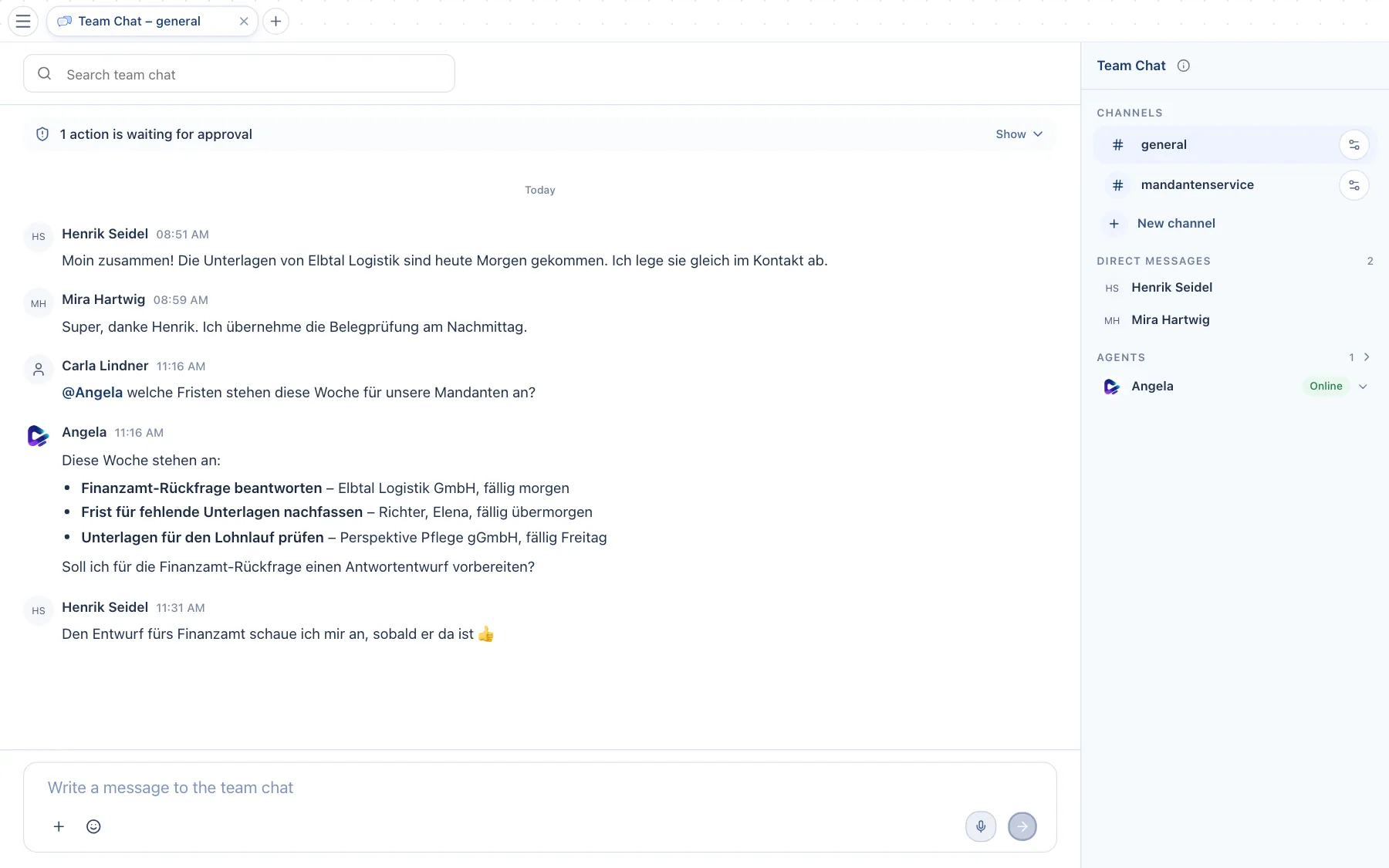
- Search – searches Team Chat.
- Mentioning the agent – with
@angelayou ask it a question or give it a job. - Agent's reply – appears directly in the channel and is visible to all members.
- Input field – Enter sends, Shift + Enter adds a new line. Use the plus button to attach files;
@,#and:work just like in the chat with the agent. - Channels – click one to switch channels.
- Channel settings – invite members and agents, set how the agent behaves, archive, restore or delete the channel, or leave the room.
- New channel – creates a channel: public for everyone or private for invited members.
- Direct Messages – private conversations with individual colleagues. Below them are the Agents you can message directly.
From a message's menu, you reply with a reference to that message or copy its text.
Using the agent in a channel
In the Channel settings, you decide for each channel how agents behave:
- Mention only – the agent only replies when you address it with
@. This is the quieter choice for busy channels. - All messages – the agent reads along and speaks up when it has something to contribute.
- More agents – invite specialized agents to a channel, for example a social media agent in the marketing channel.
- Agent-to-agent conversation – lets agents reply to each other in the channel. This is off by default.
Privacy: Everything in Team Chat is visible to all members of the channel. Personal topics are better discussed in your chat with the agent or in a direct message.
What you can ask the agent
- “@angela, briefly summarize the discussion in this channel.”
- “@angela, which deadlines are coming up for our clients this week?”
- “@angela, create a task for Henrik from this message.”