

Documents
Upload, organize and find files and review them in the preview with AI analysis – plus edit, share and send Word, Excel and Markdown files right in Clapilot.
Open in ClapilotDocuments is your team's shared file storage. Clapilot reads every file, recognizes its type and content, matches it to a contact and writes a short summary. The agent can search all documents and quote from them.
The file storage
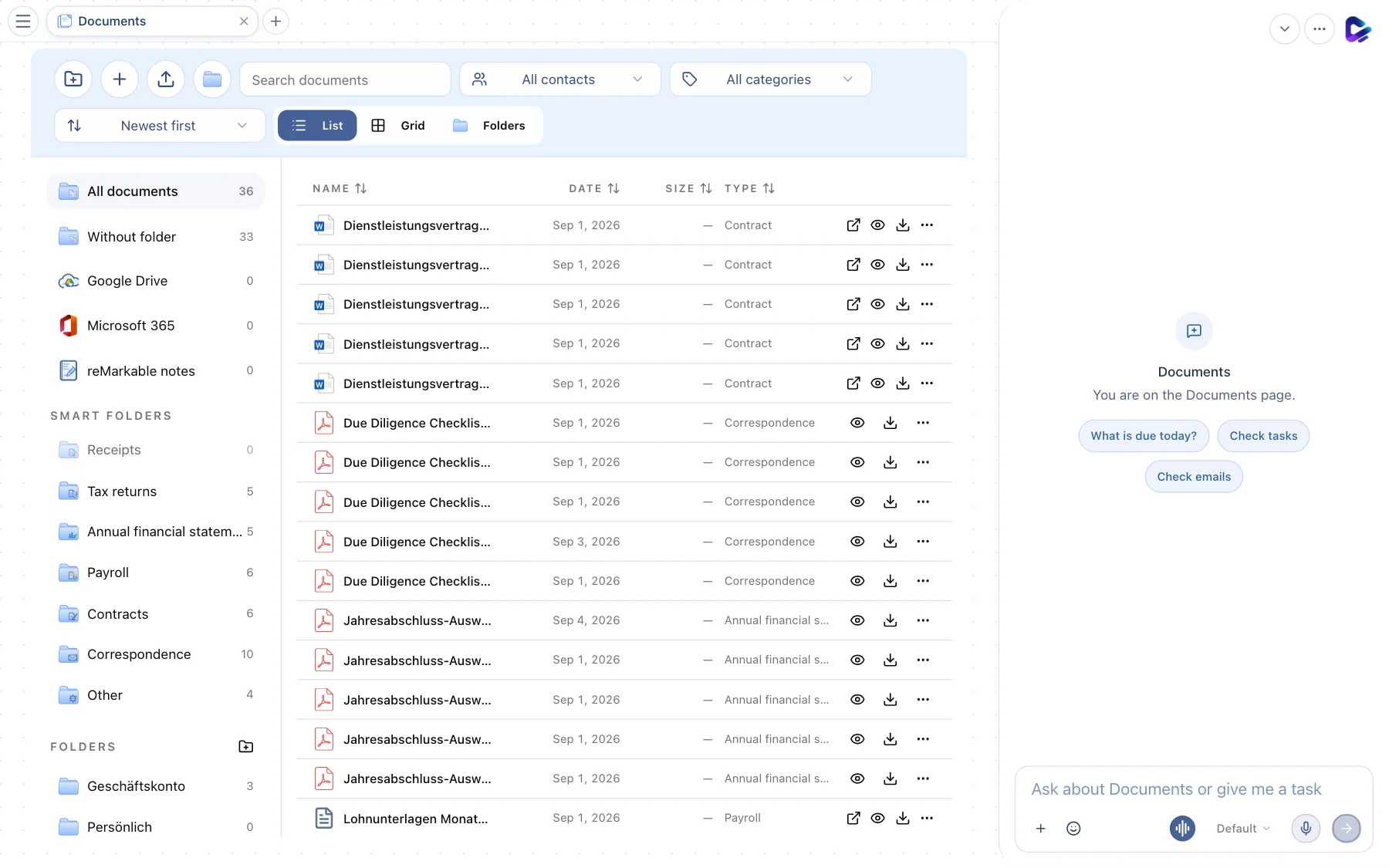
- New folder – creates a physical folder.
- New document – creates a Word document, an Excel spreadsheet, a Markdown document or a Note.
- Choose files – uploads files; the icon next to it uploads a whole folder.
- Search – searches titles and content.
- Filter contact – shows only one contact's documents; to the right you filter by Category, and below you choose the Sort order.
- List / Grid / Folders – switches the view.
- All documents – below it Without folder and the connected storage services Google Drive, Microsoft 365 and reMarkable notes.
- Smart folders – virtual folders that Clapilot builds from the recognized document types, such as Tax returns, Contracts or Correspondence. Your own Folders follow below.
- Actions – a file's menu (see below).
Uploading by drag and drop: Drag files or whole folders anywhere onto the page or directly onto a folder on the left. You move existing documents into a folder the same way. For very large numbers of files, Clapilot asks whether to Index only, analyze a sample or Analyze all.
Preview and AI analysis
The eye icon in a row opens the preview.
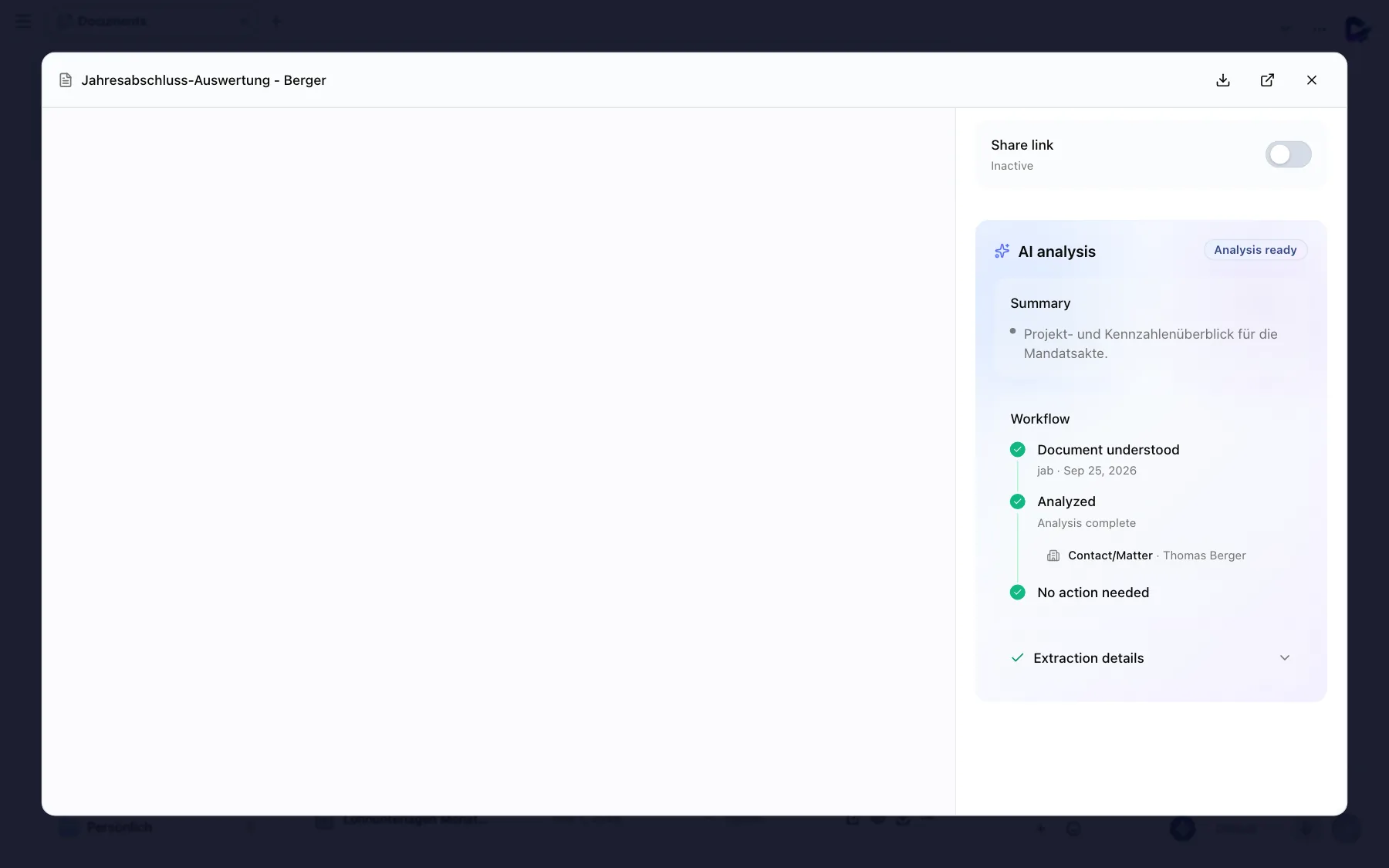
- Share link – turns on a link that lets you show the document to people without Clapilot access. Once it is active, you copy it with one click.
- AI analysis – a short summary of the content and, where it makes sense, a suggestion for a better file name.
- Workflow – what Clapilot did with the document: Document understood, Analyzed, the matched contact and whether further action is needed. Under Extraction details you see the recognized fields.
At the top right, you download the file, open it in a new window or close the preview.
The file menu
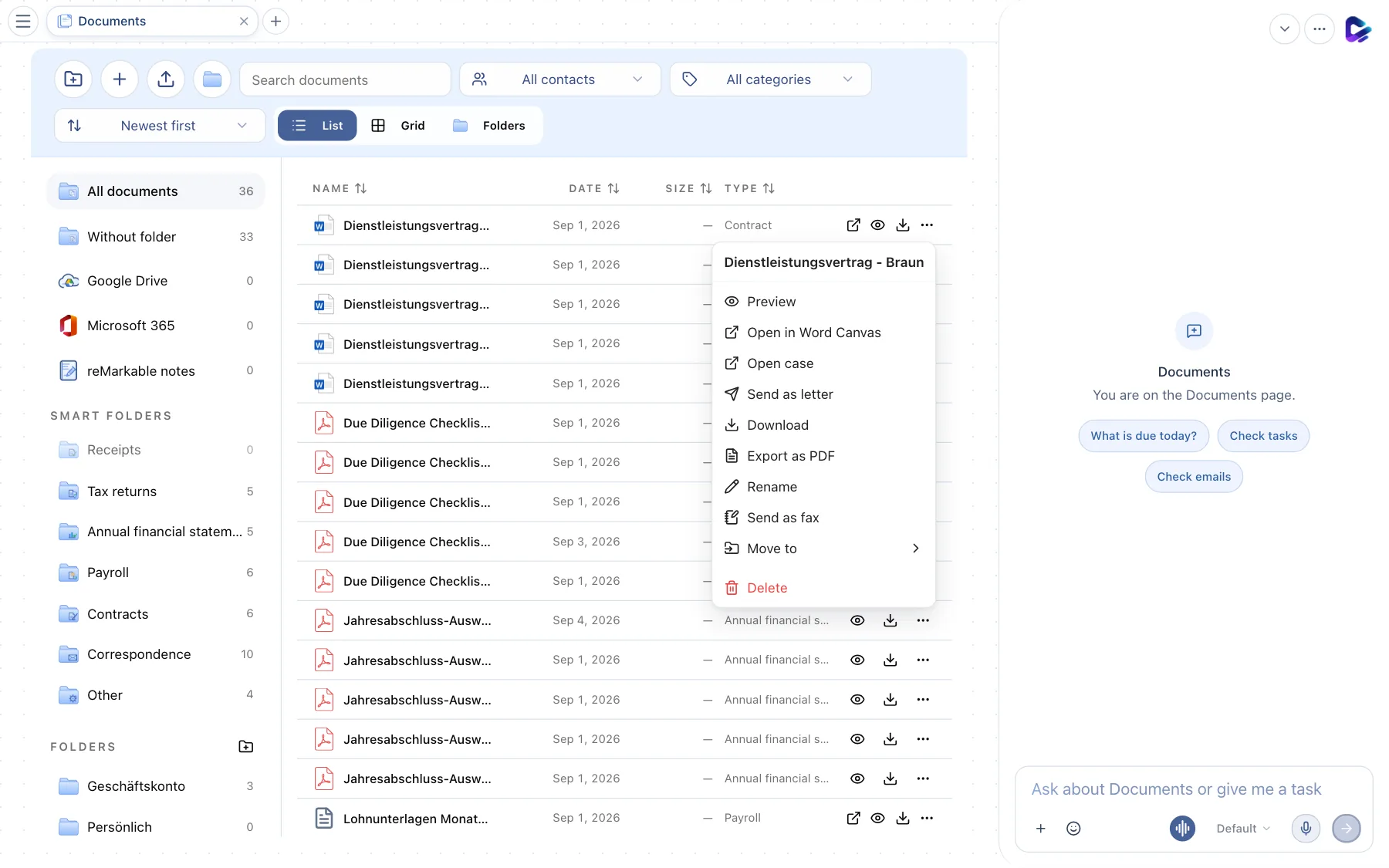
- Actions – Preview; Open in Word Canvas or Open in Excel Canvas for office files; Open case takes you to the related contact; Send as letter and Send as fax send the document; plus Download, Export as PDF, Rename, Move to and Delete.
Right-click a file to also get Copy and Share – by email, fax, post, or to a Team Chat channel or as a direct message.
Editing Word, Excel and Markdown
You edit office files right in Clapilot:
- Word Editor – text with formatting, tables and images. Cmd/Ctrl + S saves.
- Excel Editor – spreadsheets with formulas, formatting and multiple sheets; XLSX, XLS and CSV.
- Markdown – lightweight text documents, ideal for checklists and templates.
The agent can write in all three formats: “Create a Word document with a cover letter to Elbtal Logistik about extending the deadline.”
What you can ask the agent
- “Find the service agreement with TechVentures and summarize the liability clauses.”
- “Which documents from Perspektive Pflege came in this month?”
- “Move all receipts without a folder into the Geschäftskonto folder.”
- “Send the annual accounts report as a letter to the management of Elbtal Logistik.”