

Automations and specialized agents
Schedule recurring jobs for the agent, react to new emails or documents, use blueprints and set up specialized agents for their own areas of work.
Open in ClapilotAn automation is a job for the agent that runs by itself: every morning, once a week or whenever a new email, a new document or a new calendar entry arrives. Specialized agents are separate agents with their own area of work, their own skills and their own memory. You find both under Automations in the menu.
The overview
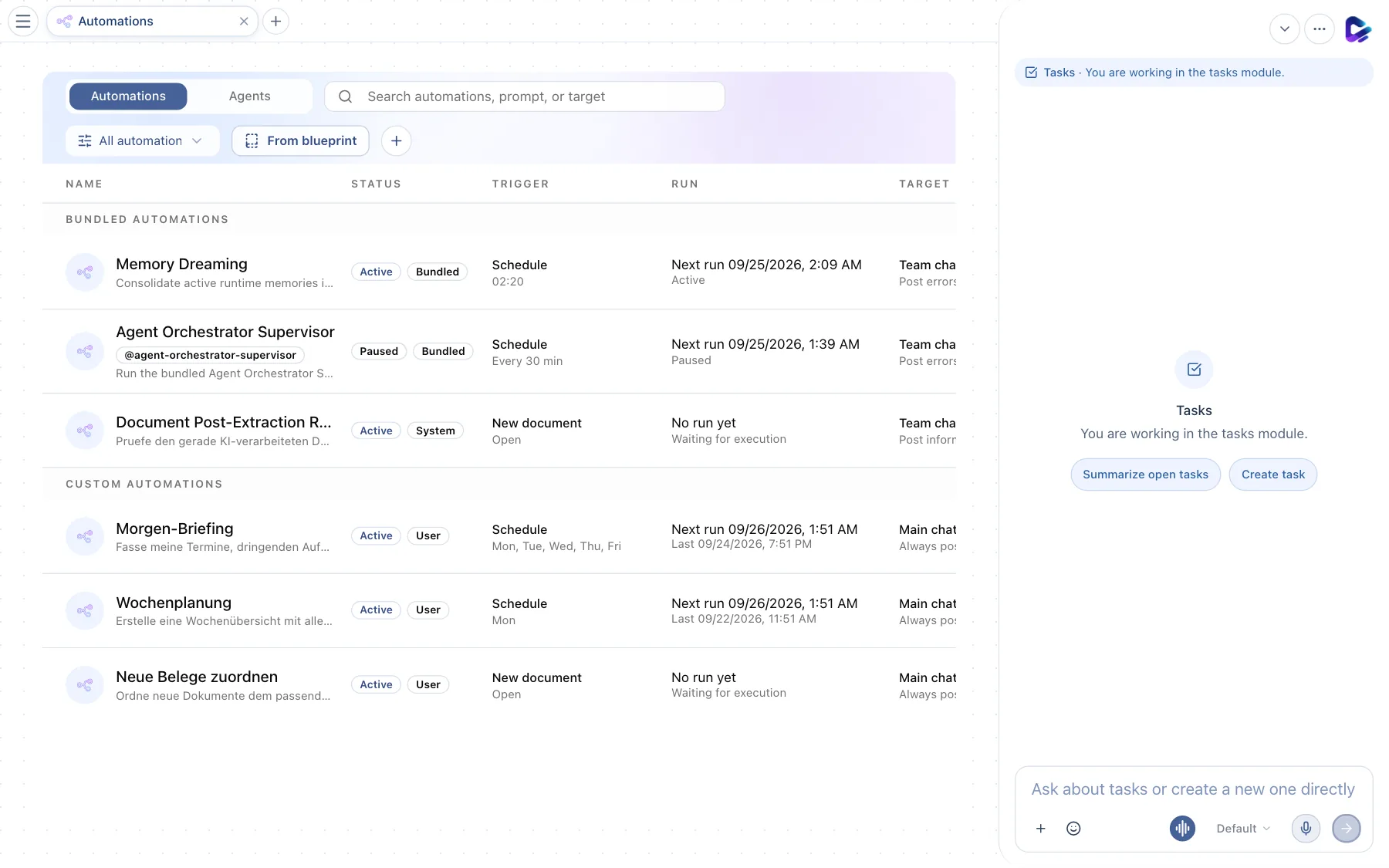
- Automations – the list of all automations.
- Agents – switches to the specialized agents (see below).
- Search – by name, prompt or target.
- From blueprint – starts an automation from a ready-made blueprint. To the left, you filter by user, bundled and system automations, by status and by trigger.
- New automation – starts with an empty automation.
- Automation – click it to open it for editing.
The list is split into Bundled automations, which come with Clapilot, and Custom automations, which your team created. The columns show the Status (Active or Paused), the Trigger, the next and last Run and the Target that receives the result. At the end of each row – scroll to the right in narrow windows – you find the actions Run log, Run automation (start it now), Pause automation or Activate automation, and Delete automation. You can pause bundled automations, but not delete them.
Creating an automation from a blueprint
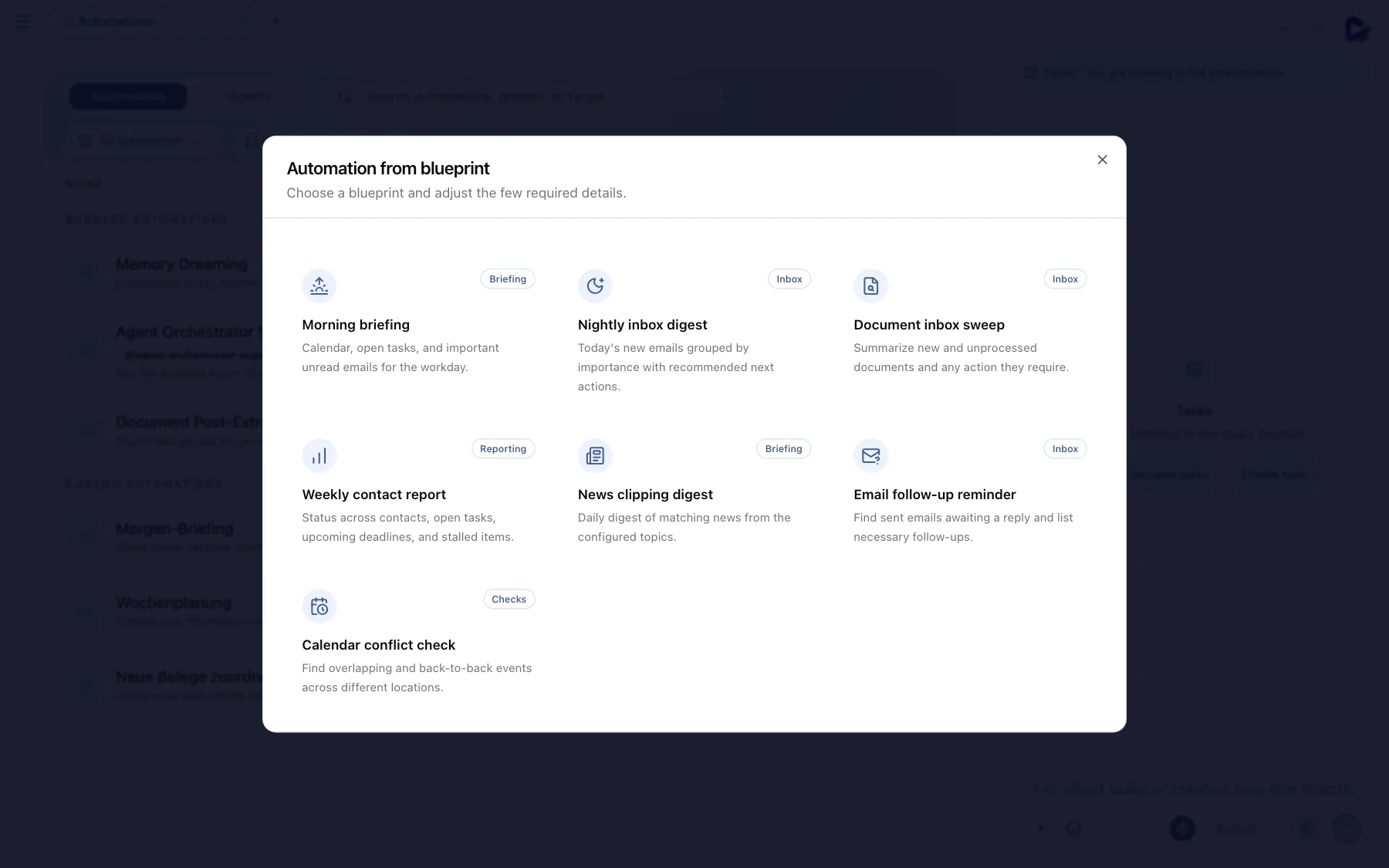
- Blueprint – for example Morning briefing: your calendar, open tasks and important unread emails for the working day. Other blueprints: Nightly inbox digest, Document inbox sweep, Weekly contact report, News clipping digest, Email follow-up reminder and Calendar conflict check.
Choose a blueprint, adjust the few details it needs – such as the time or weekdays – and save.
Editing an automation
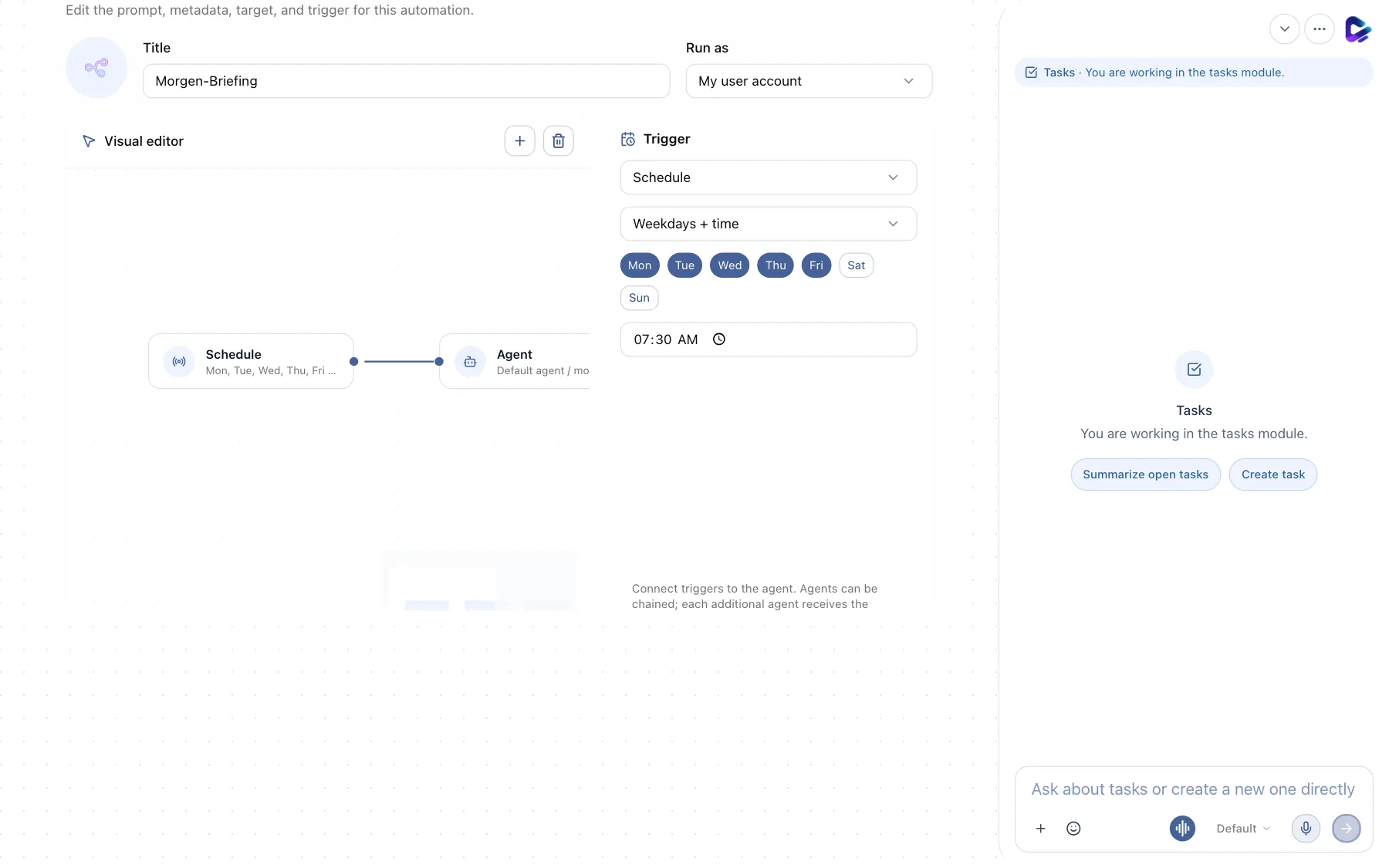
- Run as – on whose behalf the agent works: with your user account (access to your mailbox and your calendar) or – for admins – as the team agent.
- Visual editor – shows the flow as a chain: trigger → agent → output. Use the plus button to add more agents, skills or outputs; each agent receives the result of the previous one.
- Trigger – when the automation starts.
The most important settings:
- Title and Automation prompt – what the agent should do, in plain language. Example: “Summarize my appointments, urgent tasks and emails that need a reply for today.”
- Trigger – Schedule (once, at an interval or on weekdays at a set time), New email, New document, New calendar entry or Webhook for calls from other systems.
- Model – which AI model the automation uses.
- Target – where the result goes: to your Main chat or to a Team chat channel.
- Pre-approved actions – actions that would otherwise need an approval, such as sending an email, can be allowed in advance for this automation. That way it runs through even at night without asking.
The Run log tab shows every run with its result and refreshes every five seconds.
Tip: You can also create automations in the chat: “Remind me every Monday at 8 AM about weekly planning.”
Specialized agents
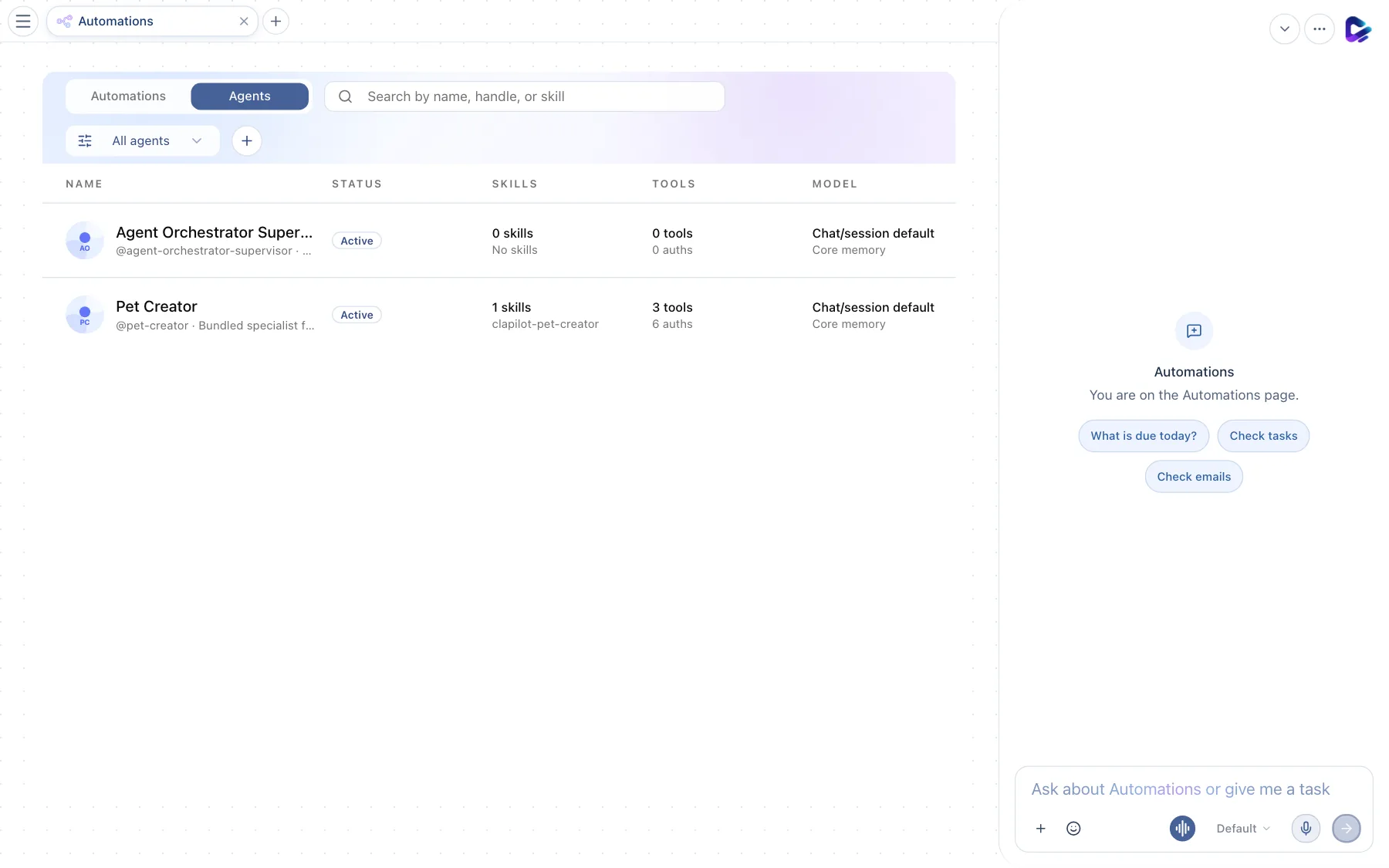
- Agents – the list of specialized agents in this instance.
- Specialized agent – with its handle (such as
@pet-creator), status, number of Skills and Tools, and the Model it uses. Click it to open its settings.
A specialized agent gets a clearly defined job, its own skills and tools, and its own memory. You address it with @handle in Chat or Team Chat, invite it to channels or let it work in automations. Specialized agents can also be connected to channels such as Telegram or WhatsApp. You create new specialized agents with the plus button; ready-made agents are in the Store under Special Agents.
What you can ask the agent
- “Send me a morning briefing in my main chat every weekday at 7:30 AM.”
- “Which automations are active, and when do they run next?”
- “Pause the weekly planning until the end of the month.”