

Working with the agent
Chat, chat dock, sessions, mentions, approvals and good instructions – how to use the AI agent as a colleague.
Open in ClapilotThe agent – in a new Clapilot instance it is called Angela, and your administrators can change the name – is not a search box but a colleague with access to your workspace. It reads emails, creates tasks and appointments, finds documents, prepares replies and operates installed modules. You can reach it in three places:
- in Chat (Menu → AI & tools → Chat) for longer conversations,
- in the chat dock to the right of every page for questions about the current page,
- in Team Chat when you mention it with
@(see Team Chat).
The chat
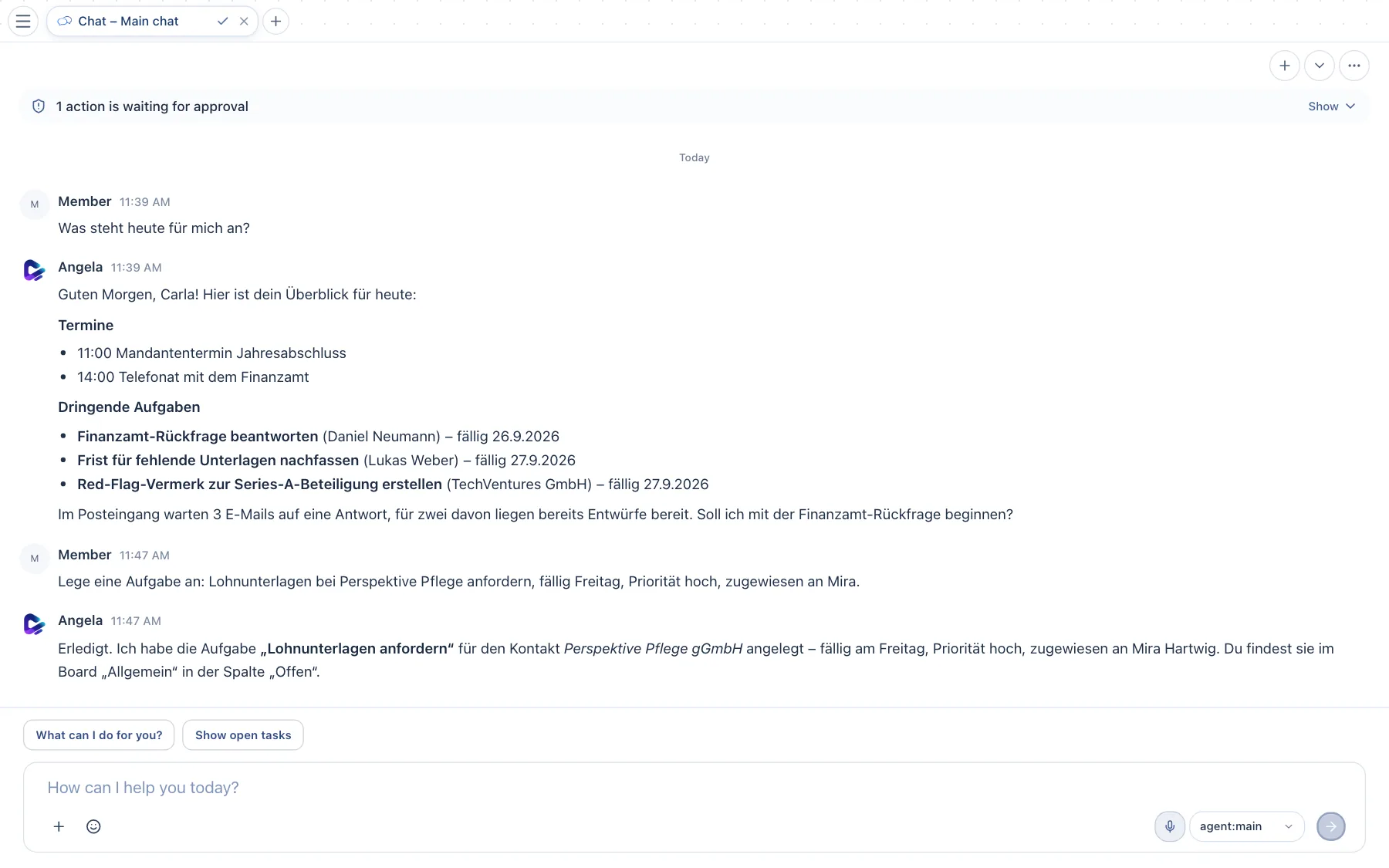
- Your message – what you asked or asked the agent to do.
- Agent's reply – here a daily overview with appointments and urgent tasks, which the agent put together from your calendar, tasks and inbox.
- Completed action – the agent tells you what it changed and names the item. After this instruction, it created a task that appears on the task board right away.
- Suggestions – short conversation starters. Click one to send it.
- Input field – type here. Enter sends, Shift + Enter adds a new line. Use the plus button to attach files; you can also simply drag them onto the field.
- Model – shows which AI model is replying. Your administrators decide which models are available.
- New chat – starts a fresh conversation. Next to it, the arrow opens the list of your sessions, and the three dots offer more options.
While the agent works, you see its progress. If you want to see every single step, turn on Show agent tool calls in chat under Settings → Profile. Feel free to keep writing while it works: Clapilot queues new messages, and Send directly pushes a message through immediately.
Sessions: separate conversations
You can keep a separate session for each topic – for example one for a client's annual accounts and one for the newsletter. This keeps the context clean, and the agent doesn't mix things up.
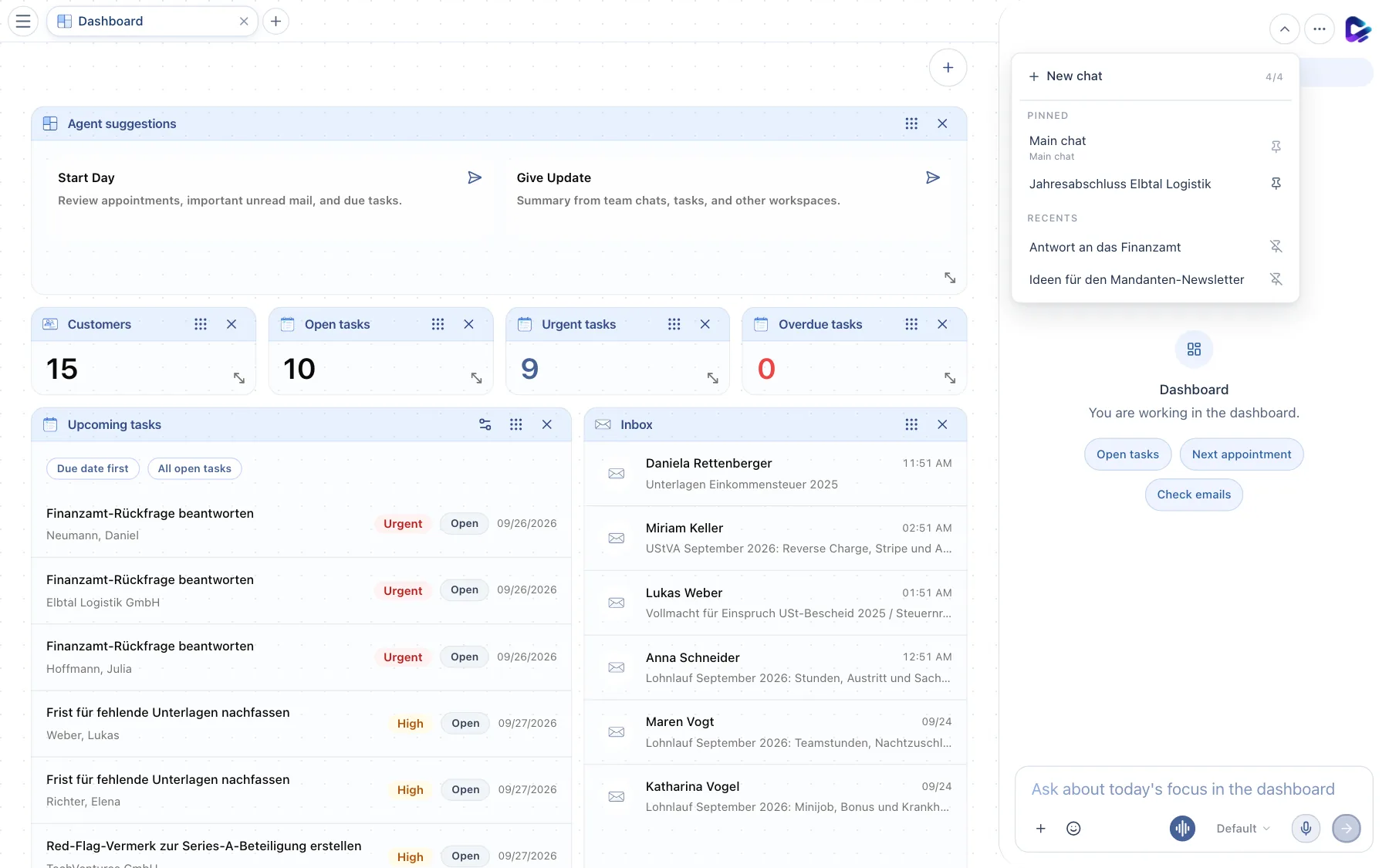
- Session selector – opens the list in the chat dock or in Chat.
- New chat – creates a new session.
- Main chat – your default conversation. It is always pinned; automations and the heartbeat report here by default.
- Pinned – sessions you want to keep at the top. The pin on the right pins or unpins them.
- Recents – your other sessions, newest first. You can rename or delete a session from its menu.
Your chats with the agent are personal. Other team members can't see them.
If you also message the agent through WhatsApp, Telegram or another messenger, those direct messages land in one of your sessions – the main chat by default. That session then shows the messenger's icon, and every message from there carries the same icon. So you see the conversation on the web and in the app too, and you can keep writing there in the same context. Your administrators decide which session is used (see Administration).
The chat dock
The dock on the right knows the current page. On the task board, the agent knows you are in the Tasks module; in an open email, it knows exactly that email.
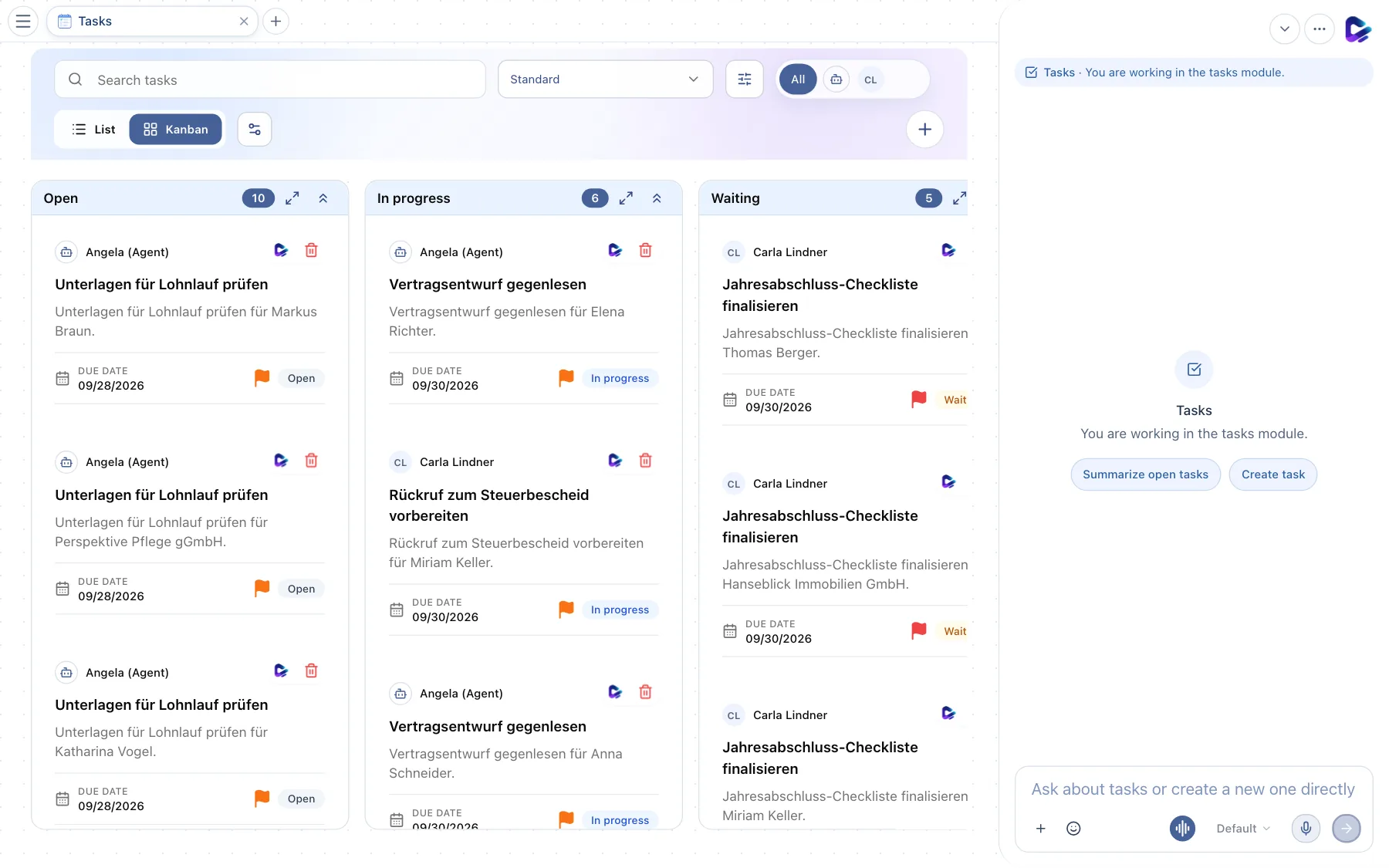
- Context – shows what your question refers to.
- Matching suggestions – change with the page, for example Summarize open tasks in Tasks or Improve reply in an email.
- Input field – works like in Chat.
- Attach file – send documents, images or spreadsheets along with your message.
- Start conversation – starts a live voice conversation. This is available once your administrators have set up a voice provider.
- Dictate – speak your message; it appears as text in the input field.
Mentions, commands and references
In the input field, four characters open a picker:
| Character | Opens | Example |
|---|---|---|
@ | Mentions: the main agent and specialized agents, and in Team Chat also people | @angela, @pet-creator |
/ | Skills and commands installed in your instance | / and then choose the skill |
# | References to documents, contacts and other items | #Jahresabschluss |
: | Emoji | :thumbs |
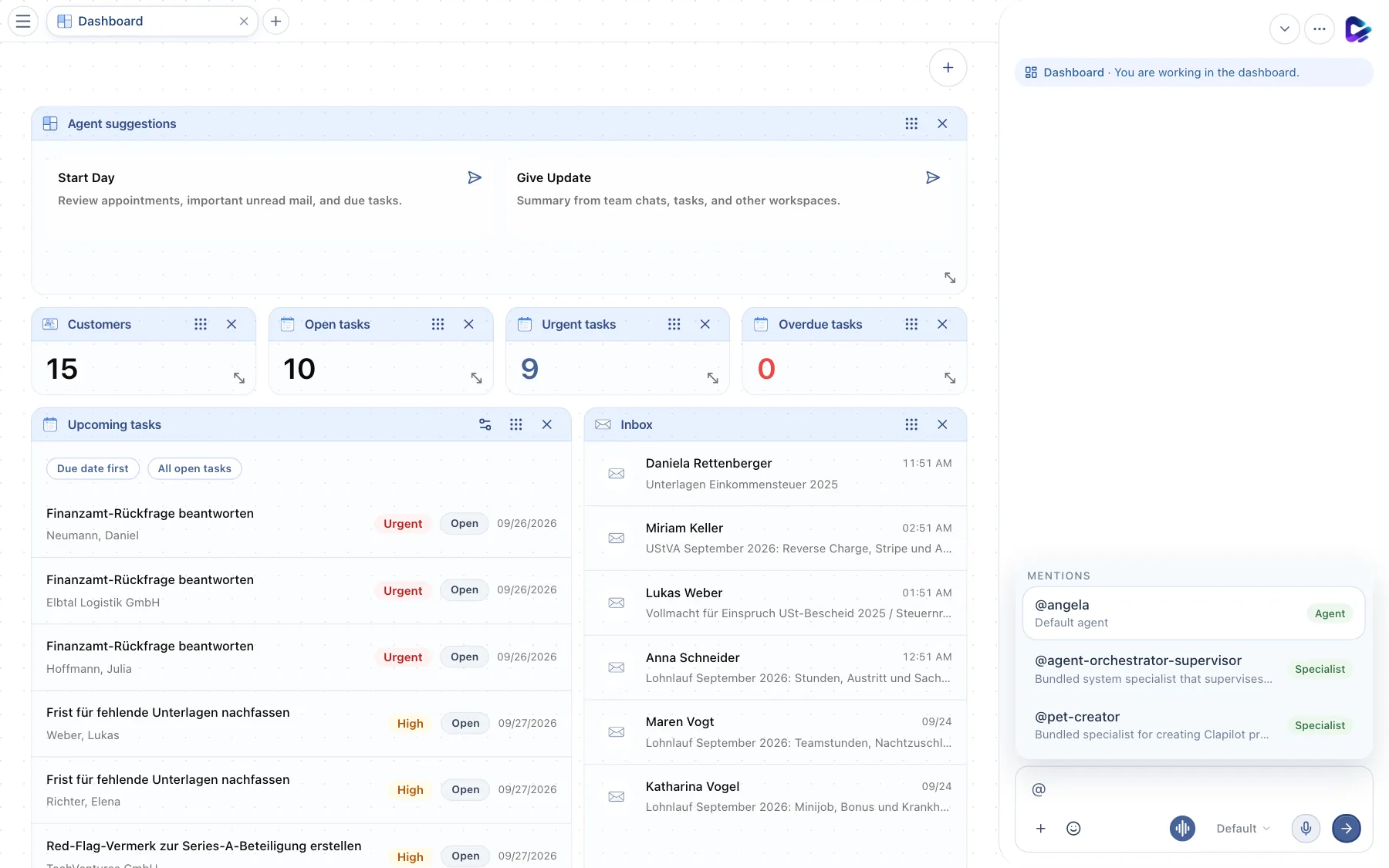
- Mentions – after
@, Clapilot lists the main agent and all specialized agents. Use the arrow keys and Enter to choose. - Input field – your choice is inserted at the cursor.
With a mention, you hand a task to a specific specialized agent, for example an agent that only handles social media posts.
Approvals: before the agent acts
The agent never carries out actions that reach the outside world or can't be undone without you. Before it sends an email, a fax or a letter, deletes data, publishes something or places an order, an approval card appears.
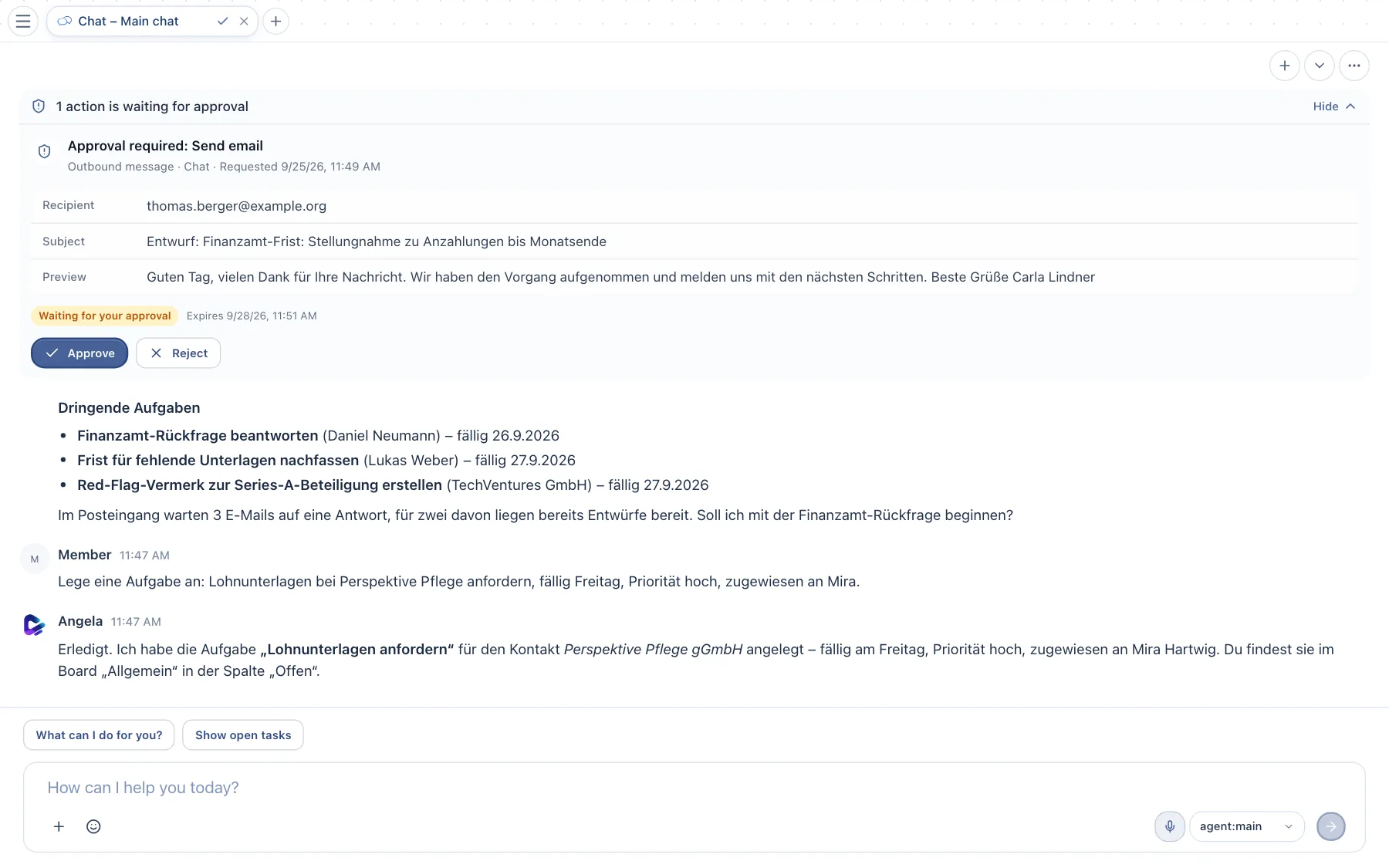
- Approval required – names the action, here Send email.
- Details – recipient, subject and a preview of the content. Check these details as you would for your own email.
- Approve – the agent carries out the action immediately, and the card shows the result.
- Reject – nothing is carried out; the agent learns that you declined.
Pending approvals stay valid for 72 hours. They also appear when the agent has been working in the background – for example in an automation – and as a notification on your smartphone. In channels such as Telegram or WhatsApp, you simply reply with the approval's number. For recurring automations, an action can be approved in advance (see Automations).
Writing good instructions
The agent works best when it knows the goal, the context and the result you want.
| Instead of … | … better |
|---|---|
| “Tax office” | “Summarize the latest email from Finanzamt Hamburg-Mitte and create a task with the deadline.” |
| “Appointment tomorrow” | “Block tomorrow from 2 to 3 PM for the Elbtal Logistik receipt review.” |
| “Reply” | “Reply to Miriam Keller's email in a friendly tone, confirm we received it and suggest two times next week.” |
More tips:
- Use names when you know them: contacts, documents, boards. With
#you insert an unambiguous reference. - Correct instead of starting over: Write “shorter”, “more formal” or “without the second paragraph” – the agent revises its last result.
- Ask about the result: “What did you change?” returns a list of the items it created or edited.
- You remain responsible for the content. Check legal, tax-related and outgoing content before you approve it.
What the agent remembers
The agent learns stable facts from your conversations, such as preferred phrasing or who is responsible for which client. Under Settings → Profile, Share my memories with the team decides whether new insights from your conversations are available to the whole team. Private memories stay private.
If you want the agent to check in on its own regularly – for example with reminders about overdue deadlines – set up the heartbeat.