

Contacts
The client file in Clapilot – finding, filtering and creating contacts, reading the workflow center and keeping track of documents, tasks and emails for each contact.
Open in ClapilotUnder Contacts you manage clients, customers, business partners and other people or organizations your team works with. Each contact brings together everything that belongs to it: emails, tasks, deadlines, documents, notes and a timeline. Contacts are visible to the whole team.
The contact list
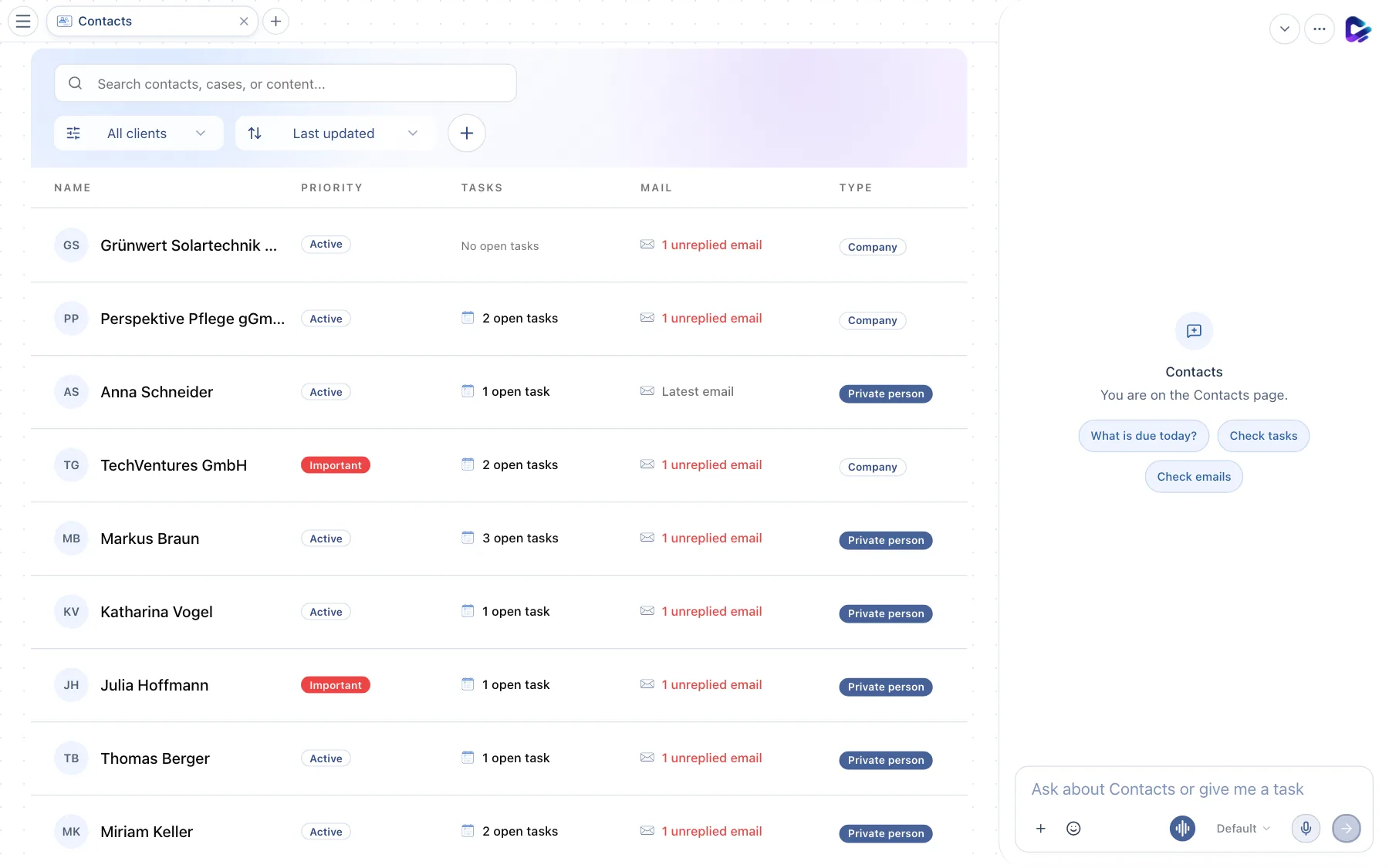
- Search – finds contacts by name, case or content.
- Filter – Active clients, With open tasks, Deadline today, Deadlines this week, Deadlines this month or Inactive.
- Sort order – by first name, last name, company, last updated or creation date.
- New client – creates a contact.
- Contact – click it to open the contact record.
The columns show the Priority (such as Important or Active), open Tasks, unanswered Mail and the Type: private person, company or association/foundation.
The contact record
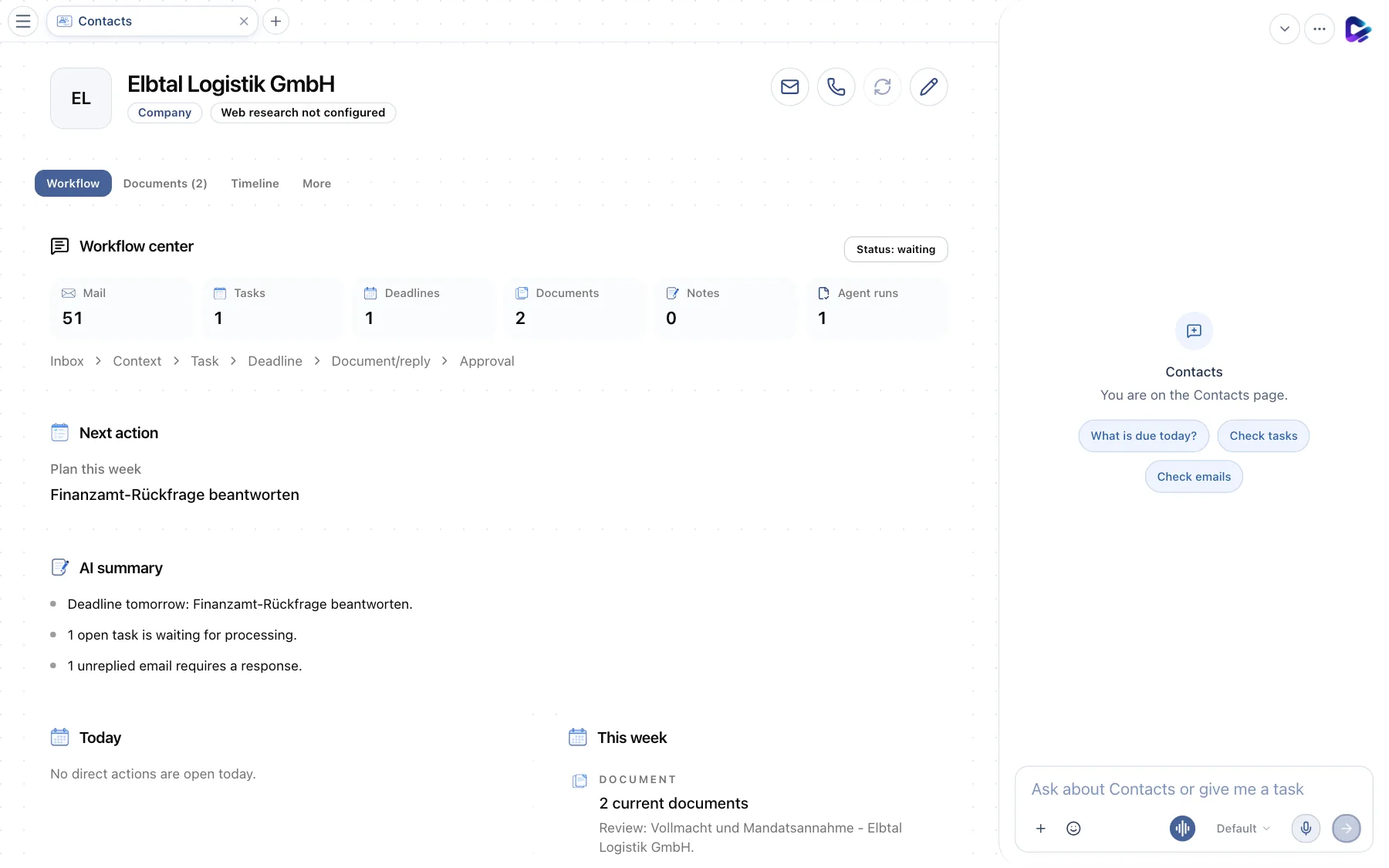
- Name and type – with a note on whether web research is set up for this contact.
- Quick actions – Send email, Call, start Web research and Edit.
- Workflow – the workflow center. Other tabs: Documents (with count and upload), Timeline with all events, and More with master data, notes and tasks.
- Next action – what to do next, for example review a task.
- AI summary – a short assessment of the current situation: deadlines, open tasks, unanswered emails.
At the top of the workflow center, tiles count Mail, Tasks, Deadlines, Documents, Notes and Agent runs. Below them, a bar shows the path of a case from Inbox through Context, Task, Deadline and Document/reply to Approval. Today and This week list the upcoming items.
If Clapilot has found information about a company on the web – such as its website, logo or industry – a suggestion appears, and Accept suggestion writes it into the master data.
Creating a contact
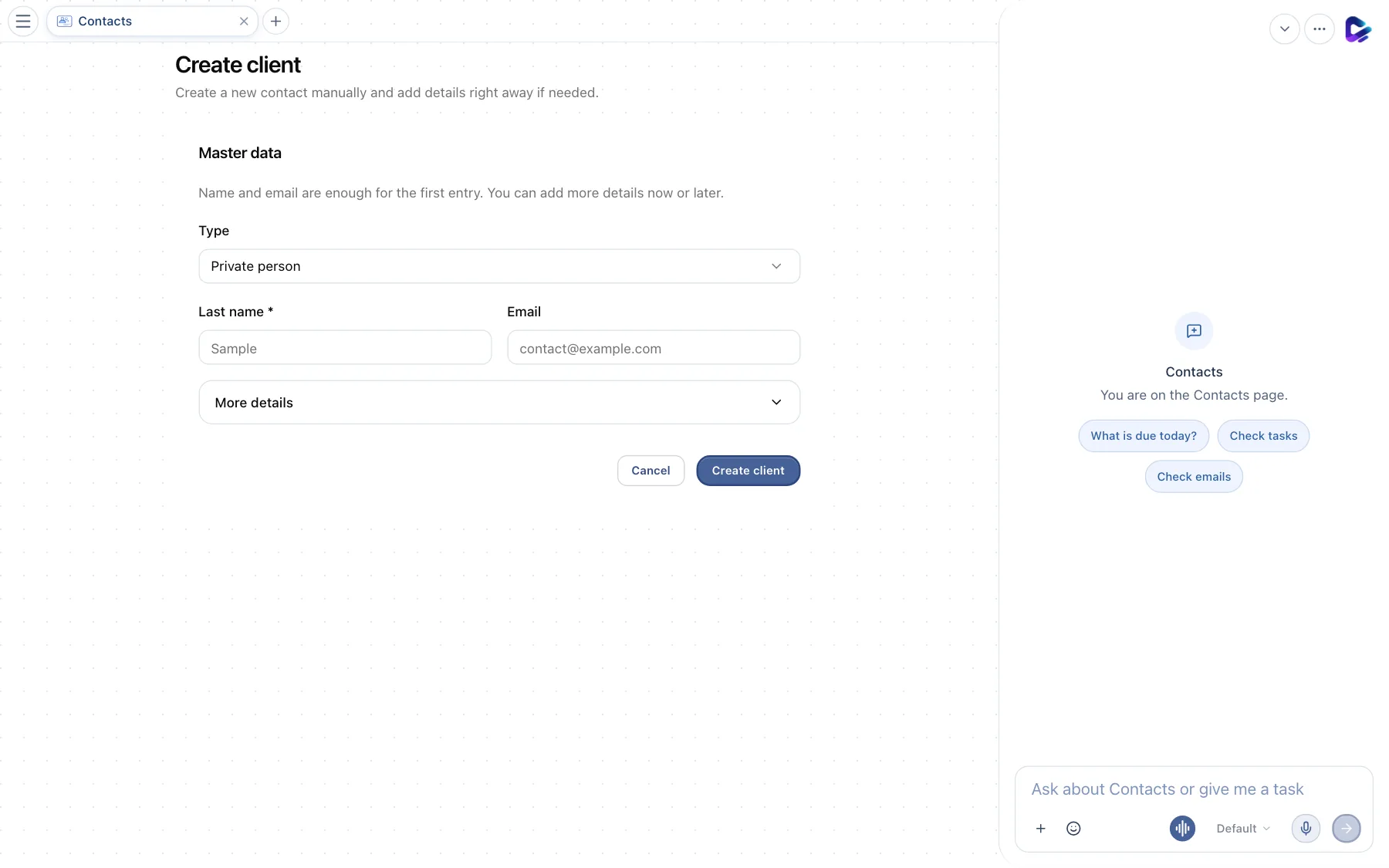
- Type – private person, company or association/foundation.
- Name – the last name for people, the company name for companies. Next to it, the Email address.
- More details – address, phone, tax number, legal form, industry and other fields.
- Create client – saves the contact.
As you type, Clapilot checks whether the contact already exists. If it finds a similar entry, it offers Open profile or merging the two – so you don't end up with duplicates.
To import many contacts at once, use a VCF file under Settings → Modules → Contacts.
What you can ask the agent
- “Show me all open tasks for Elbtal Logistik.”
- “What's the current status with Perspektive Pflege?”
- “Create a new contact: Hansa Werkbau GmbH, Hamburg, construction industry.”
- “Which contacts have a deadline this week?”