

Emails
Inbox, smart view, reply drafts, filters and folders – how to read and answer emails in Clapilot and turn them into tasks.
Open in ClapilotClapilot shows your personal mailbox and analyzes new messages automatically: it recognizes deadlines, matches contacts, creates tasks when needed and prepares reply drafts. You decide what actually gets sent.
Prerequisite: Your mailbox is connected under Settings → App Connections (Getting started).
The inbox
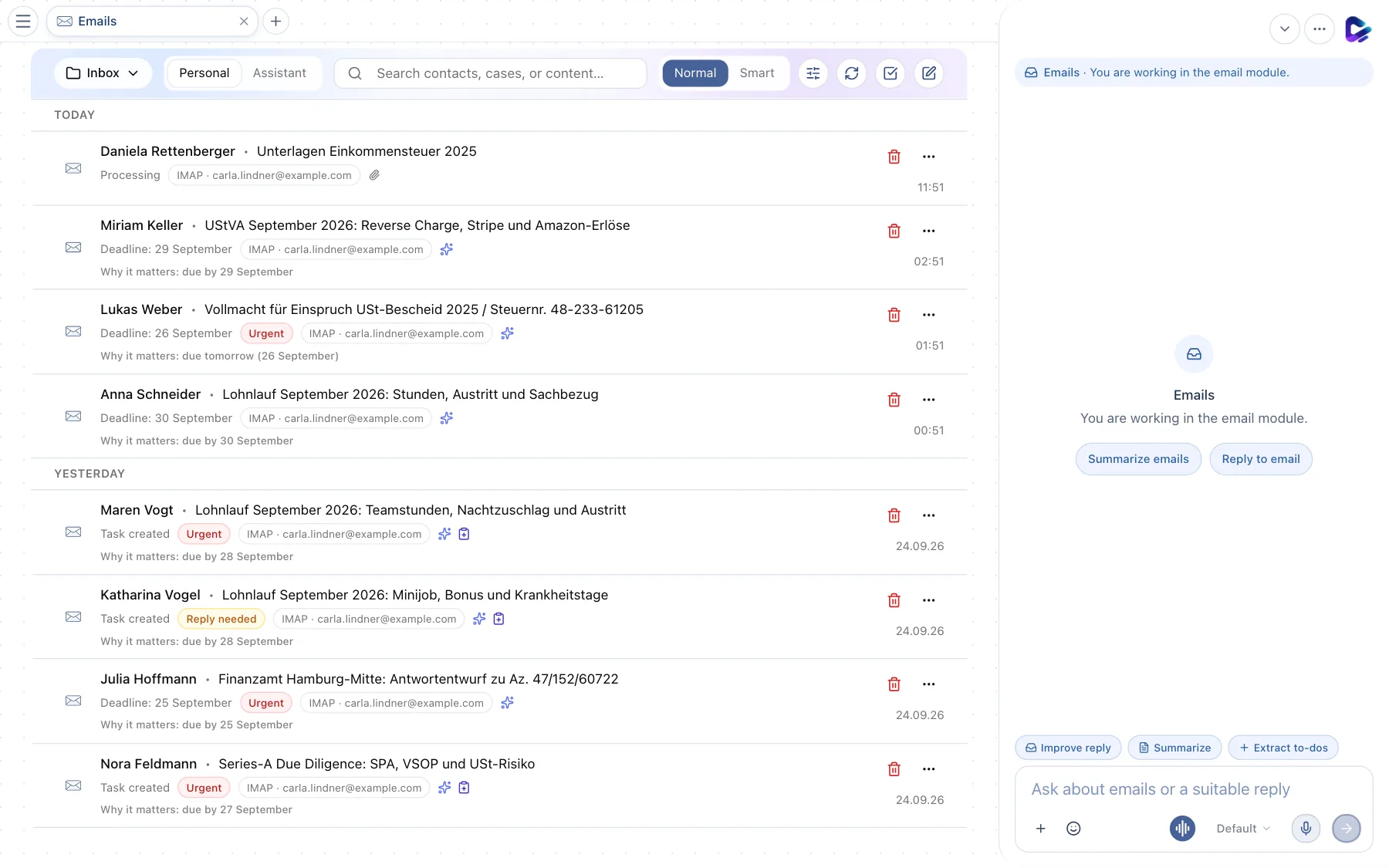
- Folders – Inbox, Archive, Drafts, Sent, Trash, plus your own folders and folders taken over from your provider, each with the number of unread messages.
- Mailbox – Personal shows your own mailbox. Next to it, you can reach the assistant's mailbox – the agent's – if your administrators have set one up.
- Search – finds emails by contact, case or content.
- Normal / Smart – switches between the chronological list and the smart view sorted by importance.
- Filter – shows only unread emails, emails with deadlines, emails that need a reply, important ones or unprocessed ones.
- Refresh – loads new messages right away.
- Select emails – selects several emails so you can mark them as read or unread, move them or delete them together.
- New email – opens an empty compose window.
- Email row – sender, subject and, below that, what Clapilot recognized: a Deadline, a rating such as Urgent or Reply needed, whether a task has already been created, and under Why important the reason in one sentence.
The list is grouped into Today, Yesterday, This week and Older. Use the trash icon in a row to delete an email directly; the three dots offer more actions.
The smart view
The smart view sorts by urgency instead of date and shows prepared replies directly in the list. This lets you work through a full inbox from top to bottom.
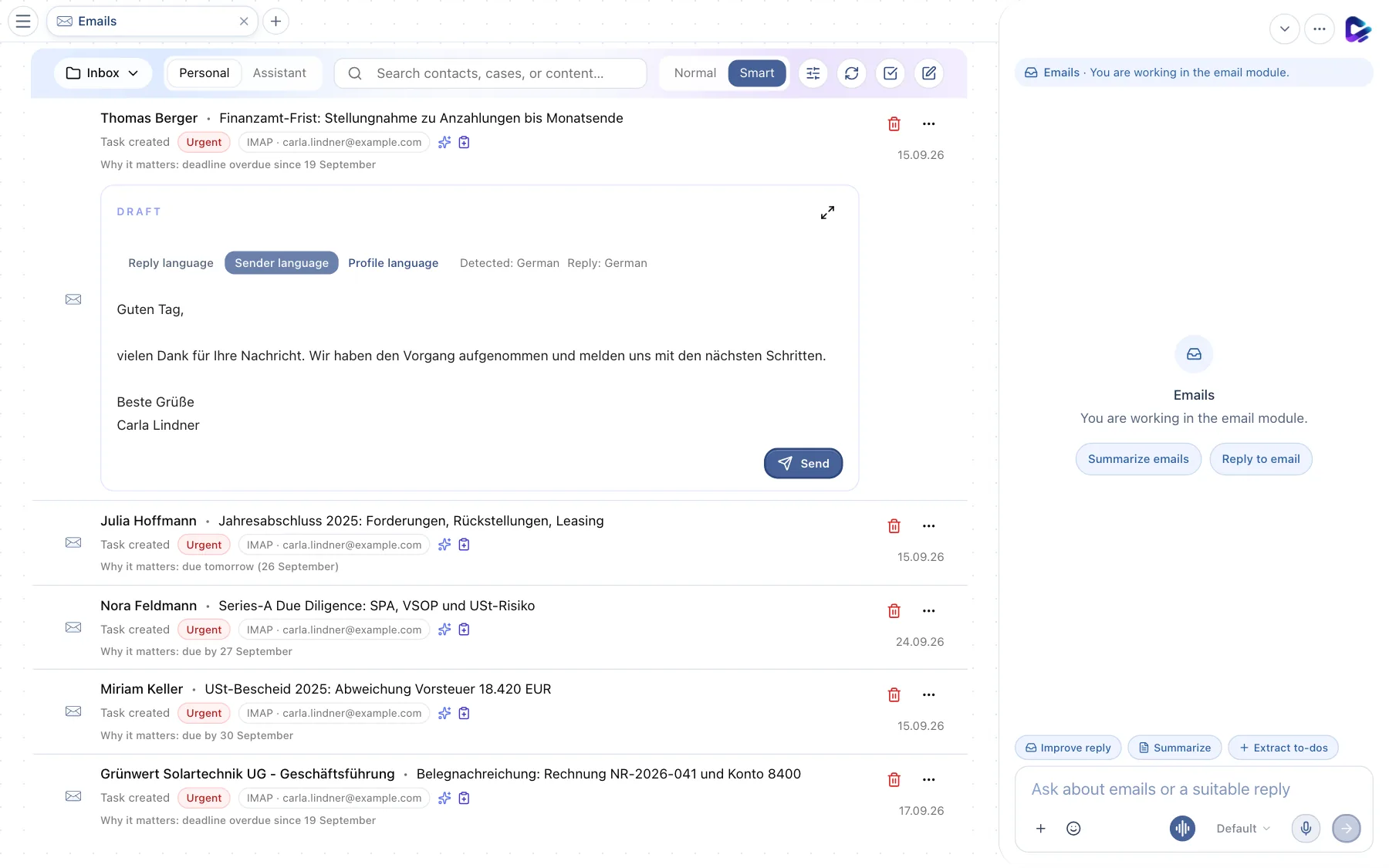
- Smart – turns on the view.
- Email with draft – the most urgent message is at the top. If a reply draft is ready, it appears directly below.
- Open draft large – edits the draft in the full reply window.
- Send – sends the draft as it is. The view then automatically moves on to the next email.
Reading an email
Click an email to open it at full width. Use ↑ and ↓ to go to the previous or next message.
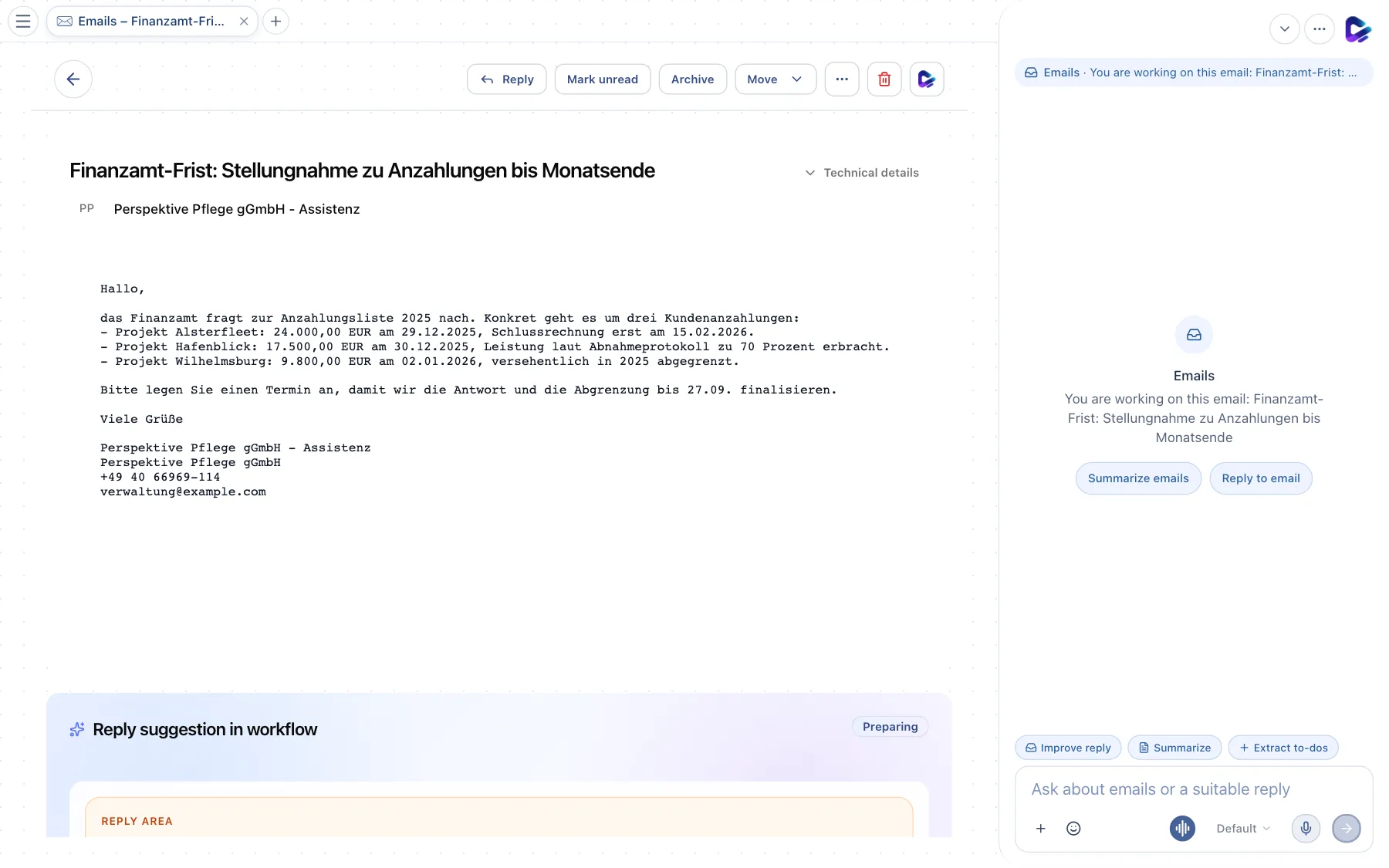
- Back – returns to the list.
- Reply – opens the reply window, pre-filled with the draft if there is one.
- Mark unread – marks the email as unread again.
- Archive – moves it to the archive.
- Move – to another folder. Use the three dots next to it to Create task or Create calendar event from the email, or to exclude the sender from automatic processing; the trash icon deletes the email.
- Forward to assistant – hands the email to the agent, which handles it as if it had been sent to the agent directly.
- Technical details – headers, recipients and message ID, in case you need to look more closely.
- Reply suggestion in workflow – what Clapilot did with the email and which reply is ready (next section).
Archive, move and read status are available for IMAP and Apple Mail accounts. For Gmail and Outlook accounts, you take these steps in your provider's mailbox.
Replies and the workflow
Every incoming email goes through a workflow: Clapilot understands the content, analyzes it, matches a contact and decides whether a reply is needed. You see the status at the bottom of the open email under Reply suggestion in workflow: at the top the Reply area with the prepared draft, and below it the steps Email understood, Analyzed and Reply decision. While the agent is still working, it says Preparing.
To reply to an email:
- Open the email and check the draft in the workflow area.
- Click Reply to edit the text, or ask for a change in the chat dock, for example Improve reply or “Make it more formal and mention the deadline.”
- If needed, choose the Reply language: the sender's language or your profile language.
- Add attachments – by uploading, by drag and drop or with Choose from Documents.
- Send sends the reply, Save stores it in your drafts, Discard deletes the draft.
Tip: If the agent is asked in the chat to send an email, an approval always appears first. No message leaves your organization without your consent.
Filters
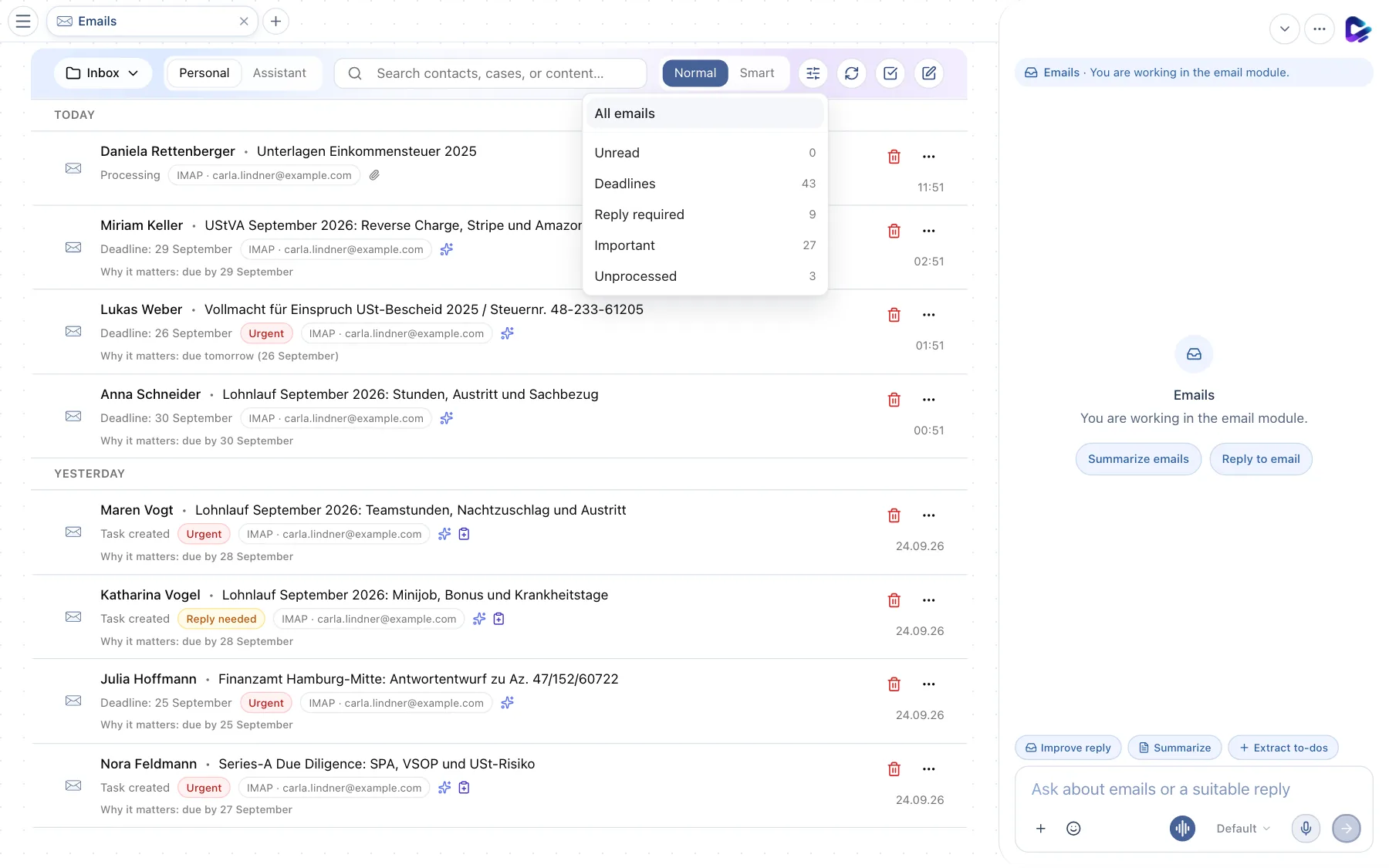
- Filter – opens the options.
- Filter options – All emails, Unread, Deadlines, Reply required, Important and Unprocessed, each with its current count.
Senders or keywords that Clapilot should not process at all – newsletters, for example – go under Settings → Profile → Email in Irrelevant email filters (Settings).
Frequently asked questions
- “No personal email account connected” – connect your mailbox under Settings → App Connections.
- “Angela mailbox is not set up” for the assistant mailbox – your administrators set up the agent's mailbox under Settings → Admin → Emails.
- “Forward an email to test Clapilot” – your inbox is still empty. Try example shows you how Clapilot processes an email.
- beA messages can be imported in your personal inbox with Import beA message, if your administrators have turned on this feature.
What you can ask the agent
- “Which emails need a reply today?”
- “Reply to Miriam Keller's email and suggest two times next week.”
- “Turn this email into a task with the deadline it mentions.”