

The workspace
Tabs, menu, chat dock and notifications – how the Clapilot screen is laid out and how to find your way around it.
Open in ClapilotEvery page in Clapilot has the same frame: a tab bar at the top, a menu that opens on the left, your work area in the middle and the chat dock with the agent on the right. Once you know this frame, you will find your way around any module right away.
The screen at a glance
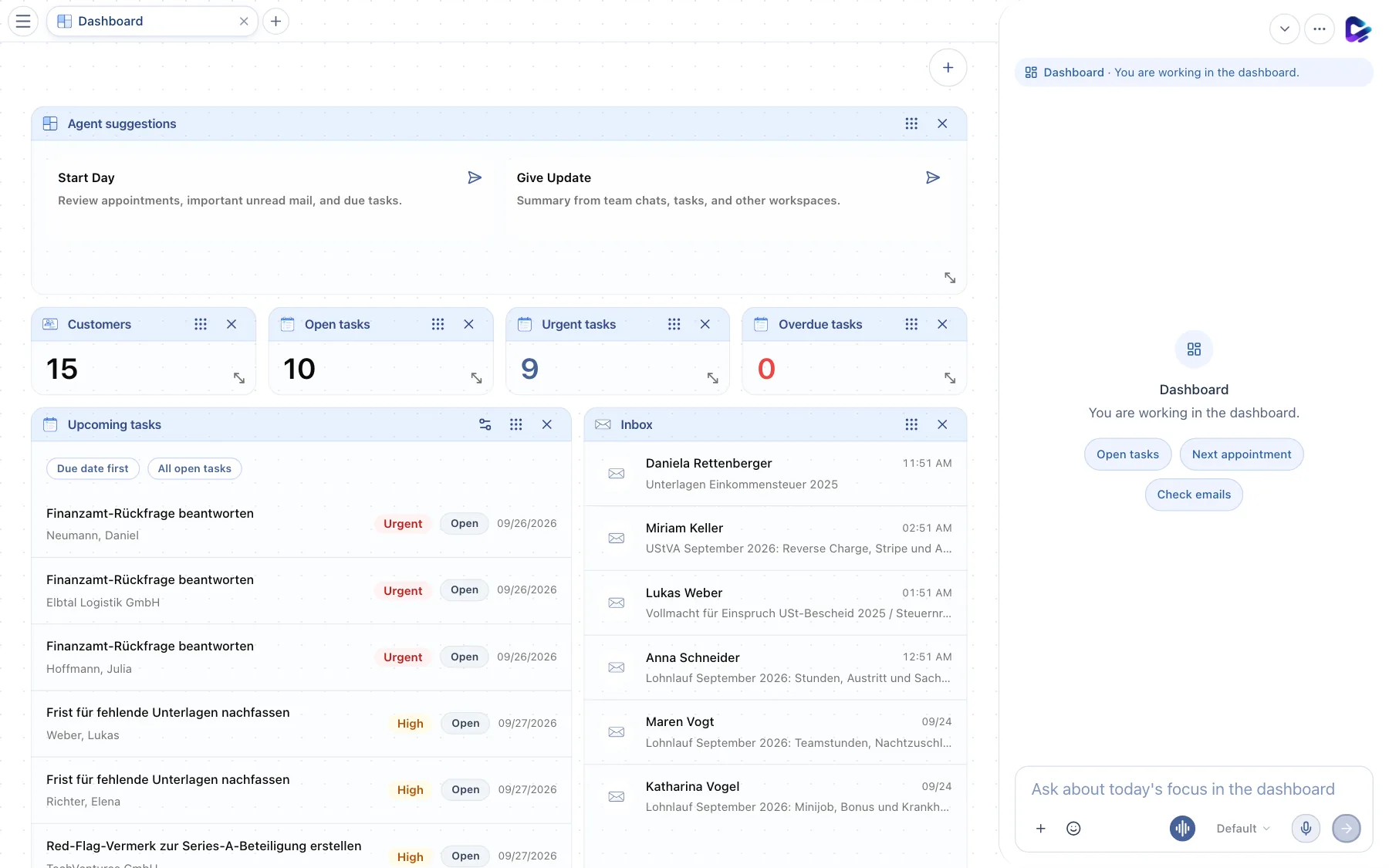
- Open menu – opens the navigation with all areas.
- Tab – every open page is a tab, just like in a browser. The name shows what you are working on, for example Emails – USt-Bescheid 2025.
- New tab – opens another page next to the existing ones.
- Page actions – the most important actions for the current page. On the dashboard, this is the plus button for new documents, tasks, notes and emails.
- Session selector – switches between your conversations with the agent in the chat dock.
- Chat input – this is where you write to the agent. It knows which page you have open.
Working with tabs
Tabs are the fastest way to switch between several things at once – for example, replying to an email, checking the contact in a second tab and creating a task in a third.
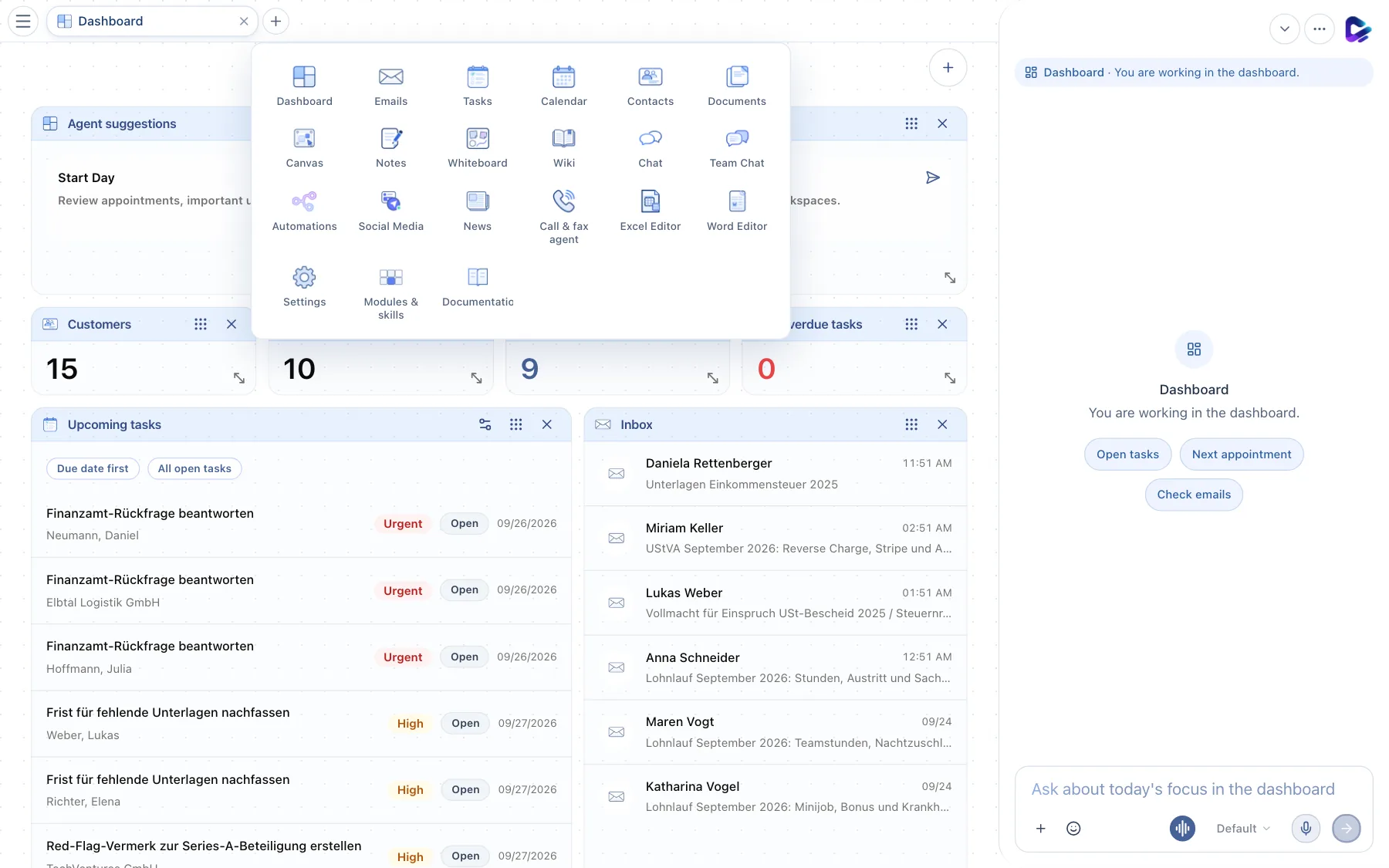
- New tab – opens the page picker.
- Choose a page – click a tile to open that area in the new tab.
- Change the page in a tab: Click the tab that is already active. The same picker appears, and the tab switches to the page you choose.
- Close a tab: Click the × on the tab. If you close the last tab, Clapilot automatically opens a new dashboard.
- Menu and tabs: Clicking an entry in the menu opens that area in the current tab. For an additional tab, use New tab.
- Up to 20 tabs can be open at the same time. Save unsaved input before you switch tabs – for example, save a reply as a draft.
- Activity dot: If the agent is working in a tab you can't currently see, a dot on the tab shows whether it is still working, has finished or has stopped. A notification with Open reply takes you straight there.
The menu
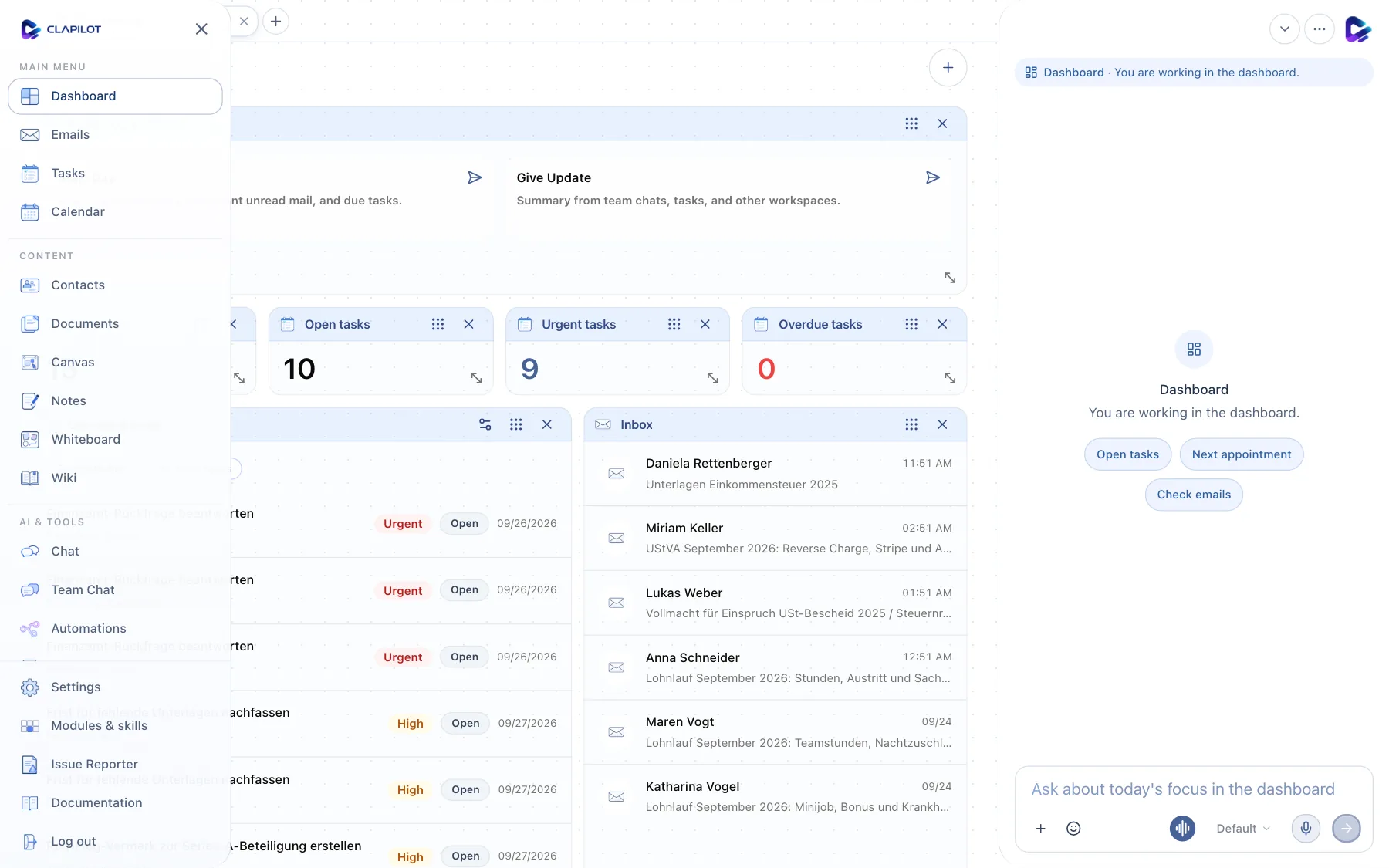
- Main menu – Dashboard, Emails, Tasks and Calendar.
- Content – Contacts, Documents, Notes, Wiki and – if installed – Canvas and Whiteboard.
- AI & tools – Chat, Team Chat, Automations and installed modules such as Social Media.
- Settings – your profile, your connections and – for administrators – administration. Below it you find Modules & skills, the Issue Reporter, the Documentation and Log out.
- Issue Reporter – reports a problem or request directly to the Clapilot team (see Help).
- Close menu – or simply press Esc.
Which entries you see depends on the installed modules. A Modules group appears as soon as additional modules such as News, Call & Fax Agent or the office editors are installed. You can change the order and visibility of individual entries under Settings → Profile → Customize menu (Settings).
The chat dock
The chat dock sits to the right of every page – except in Chat and Team Chat themselves. At the top, it shows where you are working, for example “You are working on this email”. Below that you see matching suggestions, such as Summarize emails in Emails or Summarize open tasks in Tasks. Everything else about the dock is covered in the chapter Working with the agent.
If you need more space, turn on Allow collapsing the chat dock under Settings → Profile. You can then collapse the dock, and Clapilot remembers its state.
Messages and notifications
Clapilot briefly reports results at the bottom of the screen: Done when something succeeded, Notice for information and Action failed when something went wrong. These messages disappear on their own after a few seconds.
If the agent needs your consent, for example before it sends an email, an Approval card appears in the chat. See Approvals for details.
Keyboard shortcuts
| Where | Key | Effect |
|---|---|---|
| Everywhere | Esc | Close the menu, a dialog or a detail view |
| Chat input | Enter / Shift + Enter | Send / new line |
| Chat input | / @ # : | Skills and commands / mentions / references / emoji |
| Emails | ↑ ↓ | Previous or next email |
| Tasks | Enter | Open the selected task in full view |
| Notes, Word Editor | Cmd/Ctrl + S | Save |
| Word Editor, Wiki | Cmd/Ctrl + B / I / U | Bold / italic / underline |
On your smartphone
On narrow screens, Clapilot shows a bar at the bottom instead of tabs, with Clapilot (dashboard), Chat and Settings. You open the menu with the round button at the top left. There is no chat dock; use the Chat area instead. There are also native Clapilot apps for iPhone, iPad and Mac – ask your administrators for access.