

Administration
For administrators – invite users, configure the agent, AI providers and models, the assistant mailbox, features, modules, backup and storage.
Open in ClapilotThis chapter is for administrators. All pages are under Settings → Admin and are only available to accounts with the Admin role; everyone else sees a note that they don't have access.
Roles
| Role | Can |
|---|---|
| Admin | do everything, including managing users, the agent, modules, providers and backups |
| Staff | use the entire workspace and change their own settings |
| Intern | the same as Staff; the role marks interns on the team |
Inviting and managing users
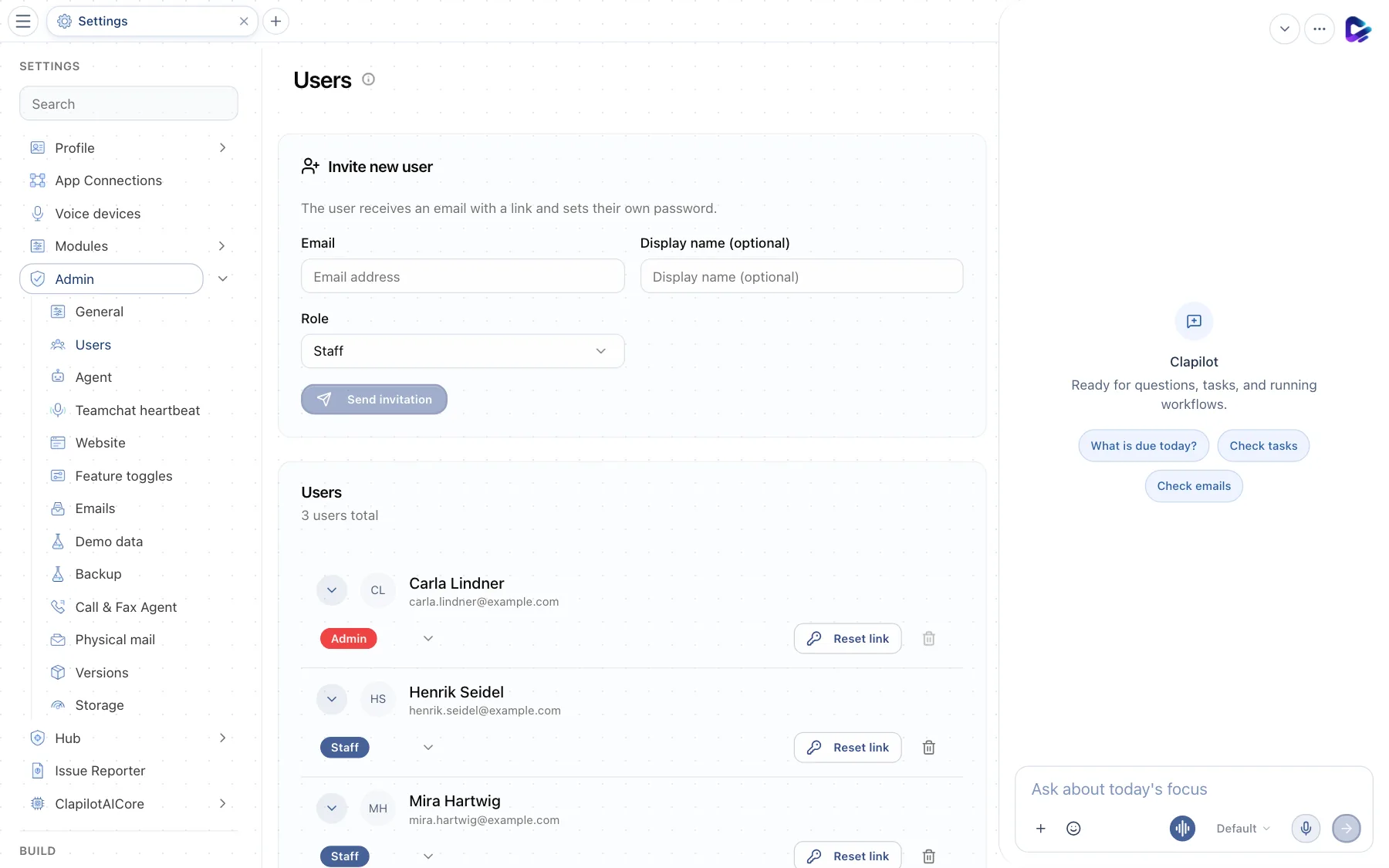
- Email – the new person's address. Next to it, optionally the Display name.
- Role – Admin, Staff or Intern.
- Send invitation – the person receives an email with a link and sets their own password.
- Users – all accounts with their role. Click the arrow in front of an account to open the profile for editing.
- Reset link – sends a link to reset the password. As long as an invitation has not been accepted, you can send it again here; the trash icon deletes an account.
Setting up the agent
Under Agent you set the Agent name that appears in the chat, in emails and in notifications. The page also shows what the agent is doing right now:
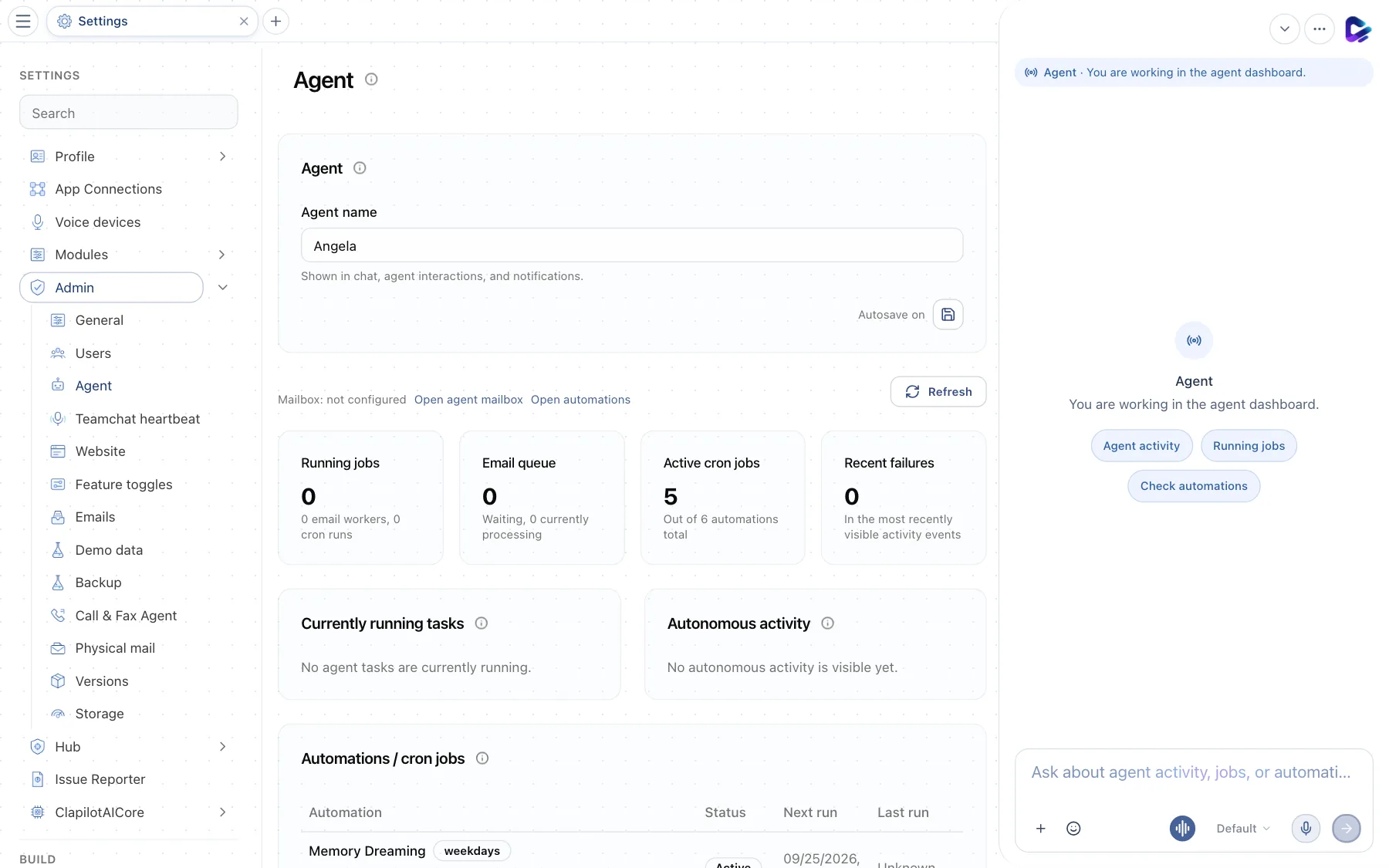
- Agent name – the agent's name, for example Angela. Changes are saved automatically.
Below that you see Running jobs, the Email queue, Active cron jobs and Recent failures, followed by tasks currently running, the agent's autonomous activity and all automations with their status. Open agent mailbox takes you to the assistant's mailbox.
Under Teamchat heartbeat you set up a heartbeat that – like the personal heartbeat – checks regularly, but posts to Team Chat.
AI providers and models
You set which AI models the agent uses under Settings → ClapilotAICore:
- Providers & models – connects AI providers such as OpenAI, Anthropic, Google or your own OpenAI-compatible server, using an API key or a subscription sign-in.
- Model Routing – which model is used for chat, email analysis and background tasks, and in which order Clapilot falls back to other models.
- Audio – speech output, speech recognition and Live Voice for conversations with the agent.
- Image generation – the provider for generated images.
- Search providers – the agent's web search.
- Channels – connect the agent to Telegram, Slack, WhatsApp, Signal or iMessage. Approve new direct messages in the Approved List, link them to a user and choose the chat session: the main chat, a dedicated session for that contact or – for your own account – an existing session. The conversation then appears in that session on the web and in the app.
- Subscription usage, Sessions, Logs and RAG index – check usage, conversations, logs and the search index over your documents.
Without at least one connected provider, the agent can't reply. So set up Providers & models first.
Turning features on and off
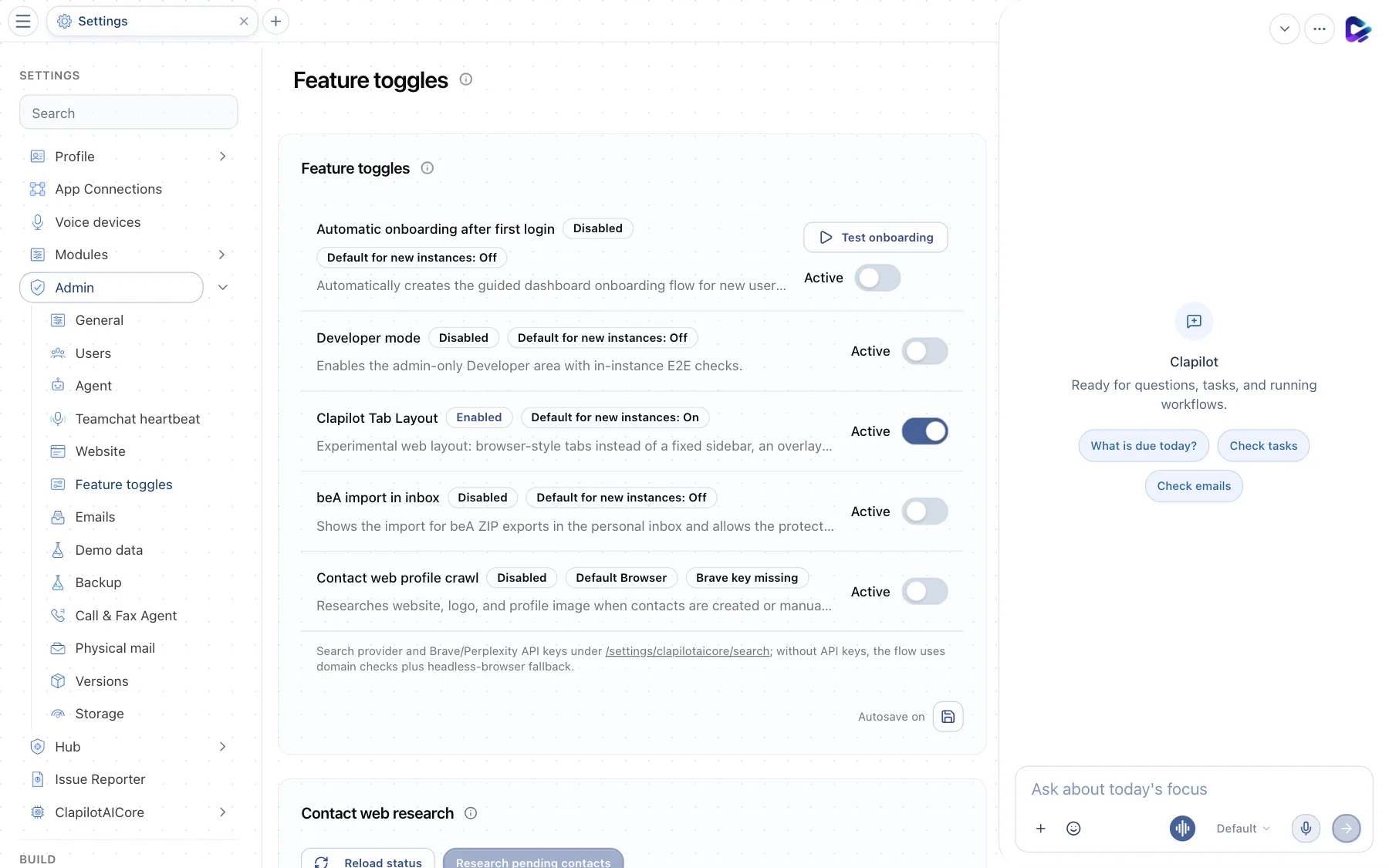
- Developer mode – unlocks developer features such as the coding agents and the terminal. Leave it off for normal use.
- Clapilot Tab Layout – the interface with tabs (default). When it is off, Clapilot shows a fixed sidebar instead of tabs.
Here you also turn Automatic onboarding after first login on or off (with Test onboarding), as well as beA import in inbox and the Contact web profile crawl. Under Contact web research you see the status of the automatic research and can start it for waiting contacts.
Assistant mailbox and email servers
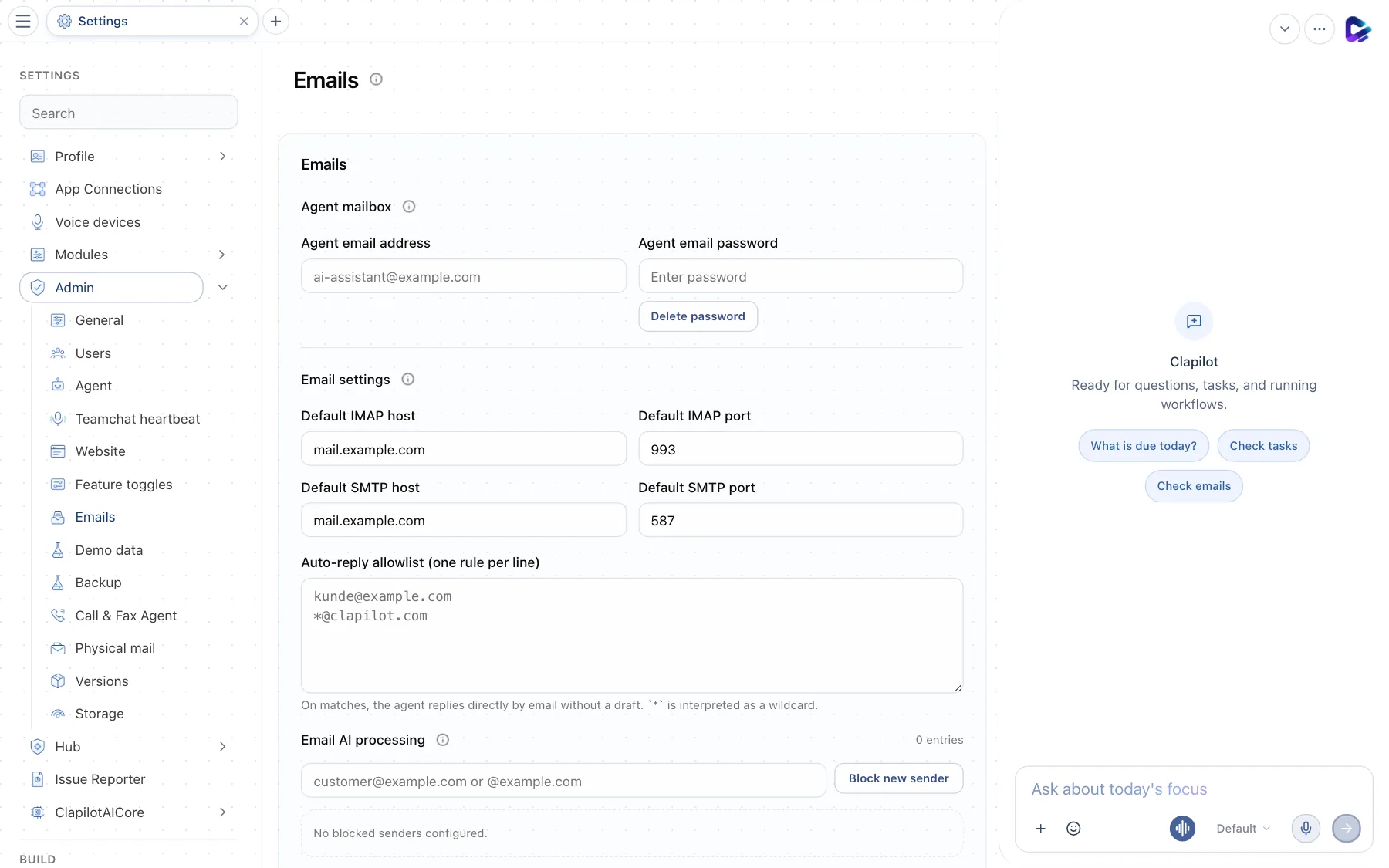
- Agent mailbox – the agent's own email address and password. You and your contacts can send emails to this address for the agent to handle; in the inbox it appears as the assistant's mailbox.
- Email settings – your company's default IMAP and SMTP servers. Once they are stored, staff connect their company mailbox with just their address and password.
Further down you set:
- Auto-reply allowlist – senders the agent may reply to directly, without first presenting a draft for review (one rule per line,
*as a wildcard). - Email AI processing – blocks senders from AI processing and chooses the model for email analysis.
- Personal inbox automation – how much Clapilot analyzes personal mailboxes automatically.
Modules for everyone
In the Store, admins install and remove modules and use Show in menu to decide whether a module appears in everyone's menu. Some modules have their own admin pages:
- Call & Fax Agent – SIP access for phone calls and fax, with Test connect.
- Physical mail – the E-POSTBUSINESS account for sending letters. New accounts start in test mode.
- Website – the target for the Website module and the GitHub connection.
- Issue Reporter – where problem reports go: as a task in Clapilot or as an issue on GitHub.
Backup, storage and versions
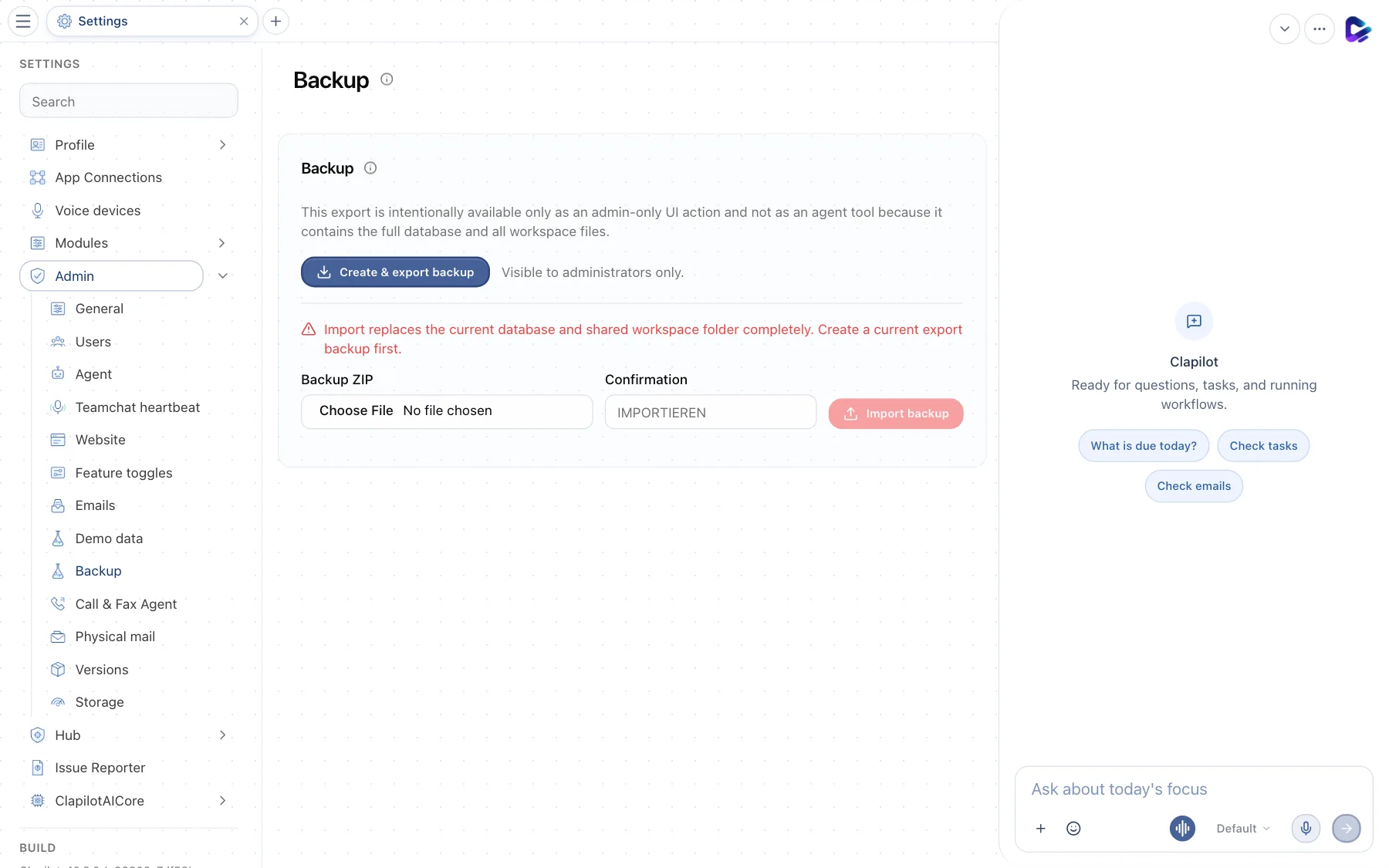
- Create & export backup – creates a ZIP file with the database and all files in the workspace.
Import backup restores a backup. This completely replaces the current database and all files – which is why Clapilot asks for explicit confirmation. Always create a current backup first.
Other pages:
- Storage – space used per source, warning thresholds (warnings appear in the #general channel) and retention rules for automatic cleanup runs.
- Versions – which Clapilot version is running and which command-line tools are installed.
- General – the public address of your instance, which is needed for share links and for sign-in with Google and Microsoft, among other things.
- Demo data – fills a test instance with sample data or empties it completely. Only intended for test and demo instances.