

Store and modules
Find and install modules, skills, widgets and specialized agents in the Store – with an overview of all optional modules such as Social Media, Call & Fax Agent, Physical mail and Video Studio.
Open in ClapilotClapilot grows with your work. In the Store (Menu → Modules & skills) you find four kinds of extensions:
- Modules – complete work areas such as Social Media, News or the Call & Fax Agent. Installed modules appear in the menu.
- Skills – abilities the agent can use, such as operating a module or an external service.
- Widgets – tiles for your dashboard.
- Special Agents – ready-made agents with their own area of work (see Automations and specialized agents).
Administrators can install and remove modules. Everyone else can see the Store and use installed modules.
Modules
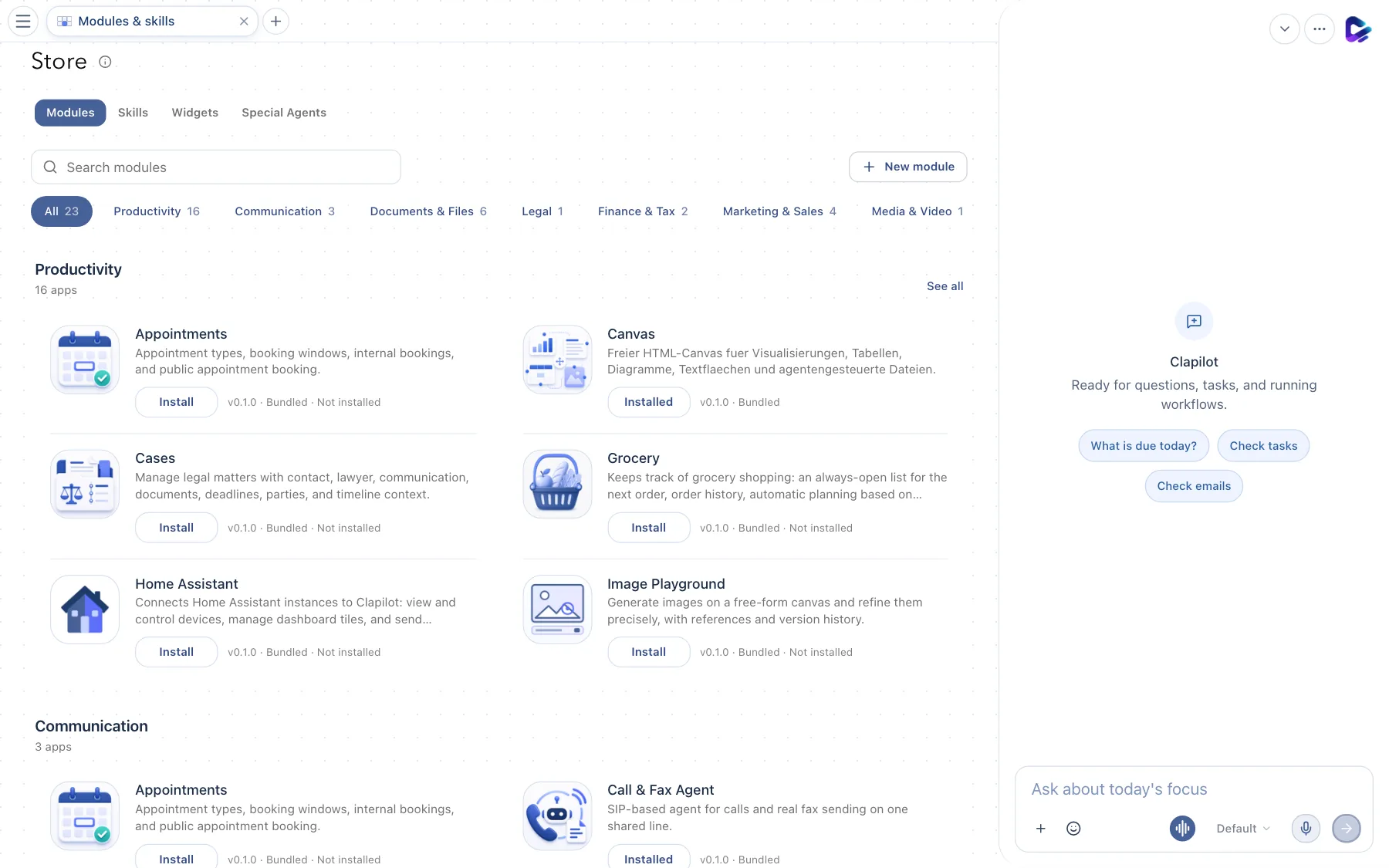
- Modules – the module overview.
- Skills – installed and available skills.
- Widgets – your own and shared dashboard widgets.
- Special Agents – installed agents and the Agent Hub.
- Search – by name or description.
- New module – creates your own module, together with the agent if you like.
- Categories – Productivity, Communication, Documents & Files, Legal, Finance & Tax, Marketing & Sales, Media & Video, AI & Automation and Developer Tools.
- Status – Installed, Always installed or the Install button.
Click a module to open its details. There, admins install, update or uninstall the module – uninstalling requires a second click to confirm. With Show in menu, admins decide whether an installed module appears in everyone's menu.
Skills
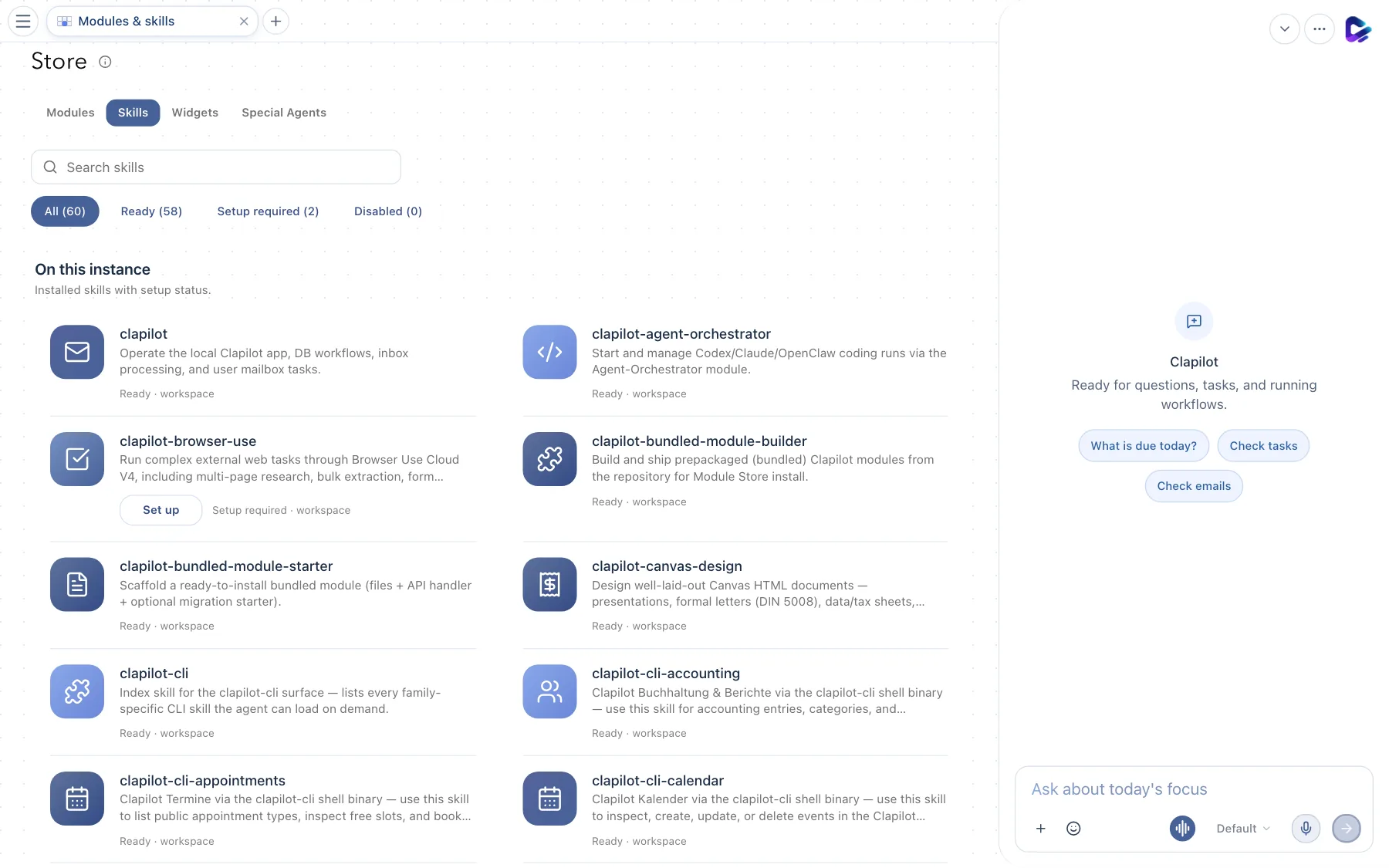
- Skills – shows the skills in this instance, with filters for Ready, Setup required and Disabled.
Most skills are ready right away. If a skill needs access credentials – such as an API key – it shows Setup required, and Set up guides you through the details it needs. You call skills in the chat with /, but the agent also uses them on its own when they fit the task.
Widgets
Under Widgets you see My widgets and shared widgets from the Widget Hub. New widget or Create with agent creates your own widget – for example a table, a list or key figures. Add to dashboard puts it on your dashboard.
Optional modules at a glance
Your administrators decide which modules are installed in your instance. Notes, Wiki, Word Editor, Excel Editor and Specialized Agents are included in every new instance.
| Module | What it's for |
|---|---|
| Canvas | Free surface for visualizations, tables and diagrams that the agent creates and edits |
| Whiteboard | Infinite whiteboard with sticky notes, shapes, connectors and freehand drawing |
| Social Media | Draft posts with AI, generate images, schedule and publish on LinkedIn, X, Mastodon, Bluesky, YouTube, Facebook and Instagram |
| News | News tiles from RSS feeds and other sources |
| Call & Fax Agent | The agent makes phone calls over your SIP line and sends real faxes; results are logged |
| Files | Browse folders in the workspace, check files and upload whole folders |
| Appointments | Define appointment types and booking windows and offer a public booking page |
| Cases | Matters and case files with contact, lawyer, communication, documents, deadlines and timeline |
| Real estate | Properties, inquiries, viewings and marketing |
| Tax Manager | VAT return (UStVA) summaries and cash-basis profit statement (EÜR) drafts from your documents |
| Video Studio | Product videos and AI storyboard videos |
| Image Playground | Generate images with references, refine them and compare versions |
| Grocery | Shopping list, order history and connections to online shops |
| Home Assistant | Control devices, cameras and voice announcements from Home Assistant |
| Shopify | Products, stock, orders and customers of your shop |
| Benchmark | Compares the configured AI models on typical Clapilot tasks |
The agent can operate every installed module. Just ask: “Which modules are installed, and what can Video Studio do?”
Physical mail
With Physical mail, Clapilot sends a PDF document as a real letter – printed, put in an envelope and delivered by post. You reach the page from Documents with Send as letter, or in the file menu with Share → Post.
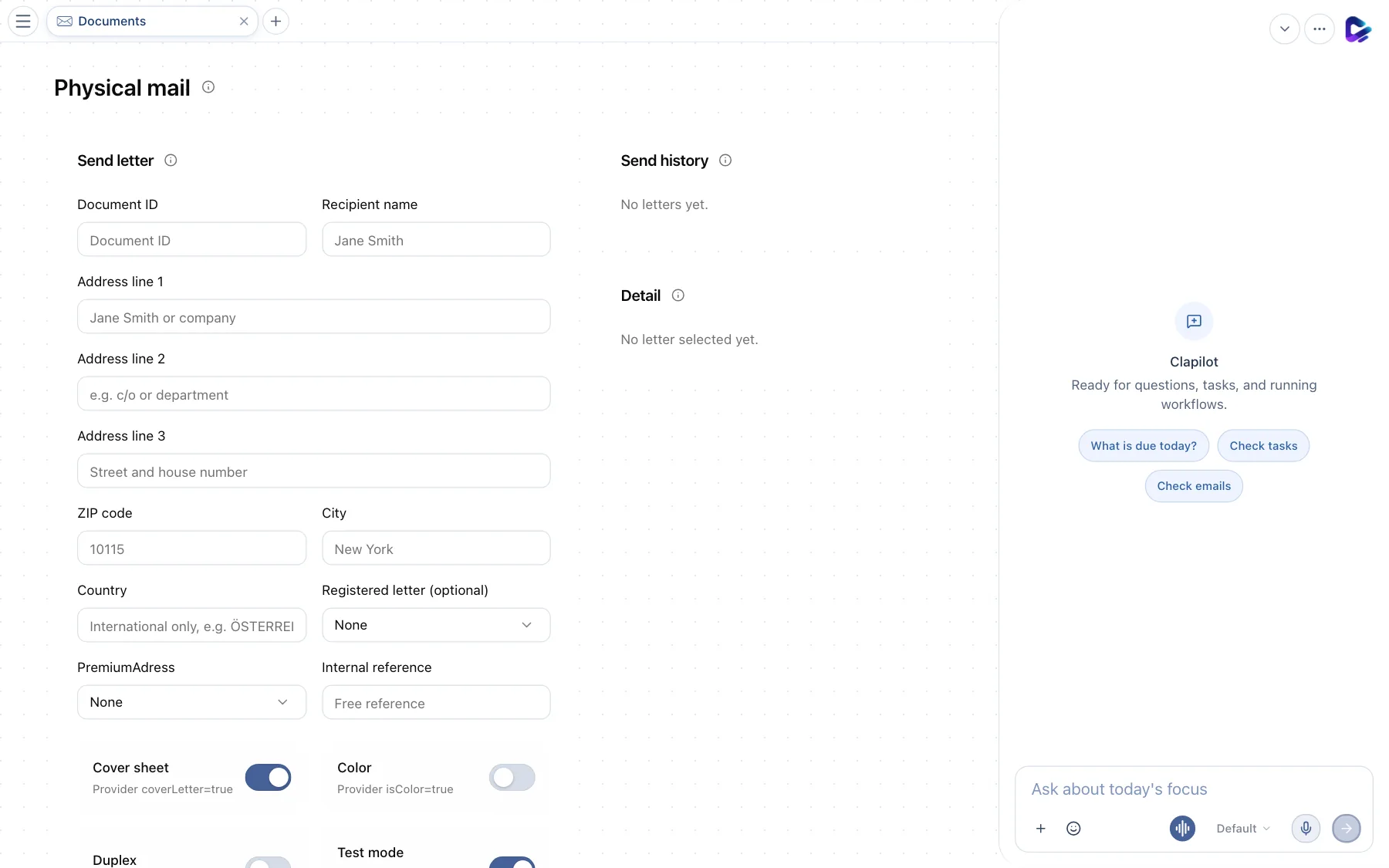
- Send letter – the document (PDF only) and the recipient's address: name, up to three address lines, ZIP code, city and country.
- Sending options – Registered letter (Einschreiben), PremiumAdress, an internal reference, plus Cover sheet, Color, Duplex and Test mode.
- Send history – all letters sent, with statuses such as Processing, In print center or Sent. Refresh status fetches the current status.
Your administrators set up postal sending under Settings → Admin → Physical mail. While Test mode is on, no real letter is sent. If the agent sends a letter, it asks for your approval first.